Fix Error Code 0xc000000f in Windows 10/11: Boot BCD Repair Guide
-
 Written By Kees Jan Meerman
 -
 Updated On Jun 25, 2026
 -
 Min Read 3 Min
 - Share this

You press the power button on your system, expecting a familiar login screen, but instead, you’re met with a black screen showing “Error Code 0xc000000f.”
Your system is dead. Your files are trapped. Restarting does nothing. This usually occurs right after an interrupted Windows update, a power outage, or a forced shutdown. The reality? Your data is likely safe. The operating system has simply lost its map—the Boot Configuration Data (BCD) file. The good news is that you can recover files even from a non-booting Windows system with the right recovery methods.
Here’s a Quick Check: Before you start tearing your PC apart, unplug all USB drives and discs. Windows could be trying to boot from a non-bootable USB stick, so this might resolve the error 0xc000000f. If removing them doesn’t work, read on as we explore all the repair and recovery options.
What Causes Error 0xc000000f?
Error 0xc000000f and other such Windows errors don’t just happen out of the blue. There is always a specific technical trigger.
Power Interruption
If the power dies while Windows is writing to the boot sector, it saves a half-finished file. The system tries to read this corrupted data, fails validation, and stops cold.
Physical Sector Damage
Hard drives develop bad sectors over time. If your BCD file happens to sit on a sector that just failed, Windows can’t read the boot instructions. The drive spins, but the data is garbage.
Malware Infection
Some nastier malware and ransomware employ “bootkits” that target the Master Boot Record (MBR) directly. They rewrite the boot code to hijack the startup. Windows detects the unauthorized change and refuses to load.
Partition Errors
Did you try resizing your C drive recently? You might have accidentally deleted the System Reserved partition. That little 100 MB partition holds the BCD. Lose it, and you lose the OS.
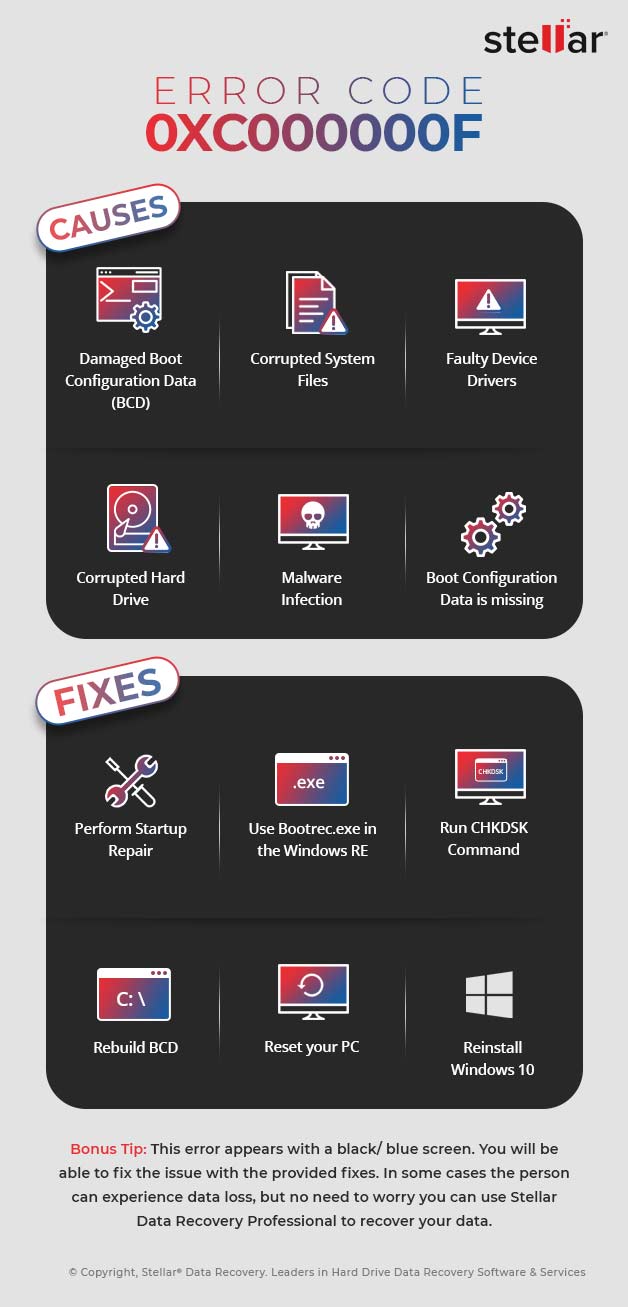
There are also other possible causes of this error, which you can see in the image below:
Decoding the Error Message
The error screen often gives you a hint about what actually broke. Let’s see this table to simplify things.
| The Message | The Technical Cause | Urgency |
|---|---|---|
| Your PC needs to be repaired. | The BCD file is missing or corrupted; usually a logical software issue. | Medium: Fixable with commands. |
| A required device isn’t connected or can’t be accessed. | Windows cannot detect the boot partition; often loose cables or drive failure. | High: Check hardware immediately. |
| Error attempting to read the boot configuration data. | The boot sector itself is damaged; common with malware or bad sectors. | High: Risk of data loss. |
| Boot selection failed. | Conflicting boot entries; common after failed dual-boot configurations. | Low: Configuration fix only. |
Troubleshoot the Boot Failure and Fix Error 0xc000000f
We are going to walk through the fixes in order of severity. You will need your Windows installation USB for most of these because the internal recovery partition is likely inaccessible.
1. Let Windows Try to Fix Itself
Don’t jump straight to the command line interface. Windows has a “Startup Repair” tool built into the installation media that handles simple alignment issues surprisingly well.
- Boot from your Windows USB stick.
- Skip the installation screen by clicking Repair your computer in the corner.
- Navigate to Troubleshoot, then Advanced options, and hit Startup Repair
- You will have to pick your user account and type in your password. Let it run.
It scans the partition table for missing files and tries to replace them. If it works, great. If it says it “couldn’t repair your PC,” you’ll need to do it manually.
2. Rebuild the BCD Store Manually
This is the engineer’s go-to fix. We are going to wipe the old boot configuration and force Windows to build a new one from scratch.
- Go back to Advanced options and open the Command Prompt. You need to run three specific commands to repair the Master Boot Record, the boot sector, and the BCD store itself.
- Type the following commands, pressing Enter after each.
- Type bootrec /fixmbr and hit Enter. This repairs the MBR.
- Next, type bootrec /fixboot and hit Enter. This writes a fresh boot sector.
- Finally, run bootrec /rebuildbcd.
- This command scans every drive for Windows installations. When it finds your OS (usually on the C: drive), it will ask if you want to add it to the boot list. Type Y and press Enter.
Once you see “Operation successful,” close the window and reboot.
3. Check for System File Corruption
Sometimes the boot map is fine, but the engine is broken. If core Windows files are damaged, the system will crash during load. We use the System File Checker (SFC) to fix this.
- Open that Command Prompt
- Type sfc /scannow and press Enter.
This is a slow process because it verifies the integrity of every protected system file against a hidden cache. If it finds a bad file, SFC swaps it out automatically.
4. Rule Out a Dying Drive
If software commands aren’t working, we have to look at the hardware. A physically failing drive will corrupt files as fast as you fix them.
- Open the Command Prompt as administrator.
- Type chkdsk C: /f /r and hit Enter.
- This tells Windows to check the file system (/f) and scan the physical disk surface for bad sectors (/r).
Critical Warning:Watch this scan closely. If it starts reporting a stream of “bad sectors,” or if your drive starts making clicking or grinding noises, stop immediately. Stressing a dying drive is the fastest way to destroy your data permanently. Repeated boot errors are often caused by bad sectors in HDD and SSD, which slowly corrupt essential system files.
5. The “Nuclear” Reset
If your hardware is healthy but Windows is still refusing to boot, you can reinstall the OS without losing your personal data.
- Go to Troubleshoot > Reset this PC.
- Select Keep my files.
This wipes your installed programs and generates a completely fresh Windows environment and BCD file, but your documents, photos, and other data stay safe, provided they were in a separate volume.
When to Stop DIY Repairs and Call a Professional
In such situations, professional hard drive data recovery can help retrieve your files safely without risking permanent loss.
If the drive clicks, grinds, or disappears from the BIOS, stop!
Software cannot fix broken metal. Running recovery or repair utilities on a mechanically failing drive can strip the magnetic coating off the platters. Once that happens, your data is gone forever.
This is where Stellar professional recovery services come in. We can pull data from corrupt Windows systems that won’t boot. Using proprietary tools, we create a bootable USB environment that runs independently of your hard drive and scans for files without loading the damaged OS.
For physical failures, we use a Class 100 Cleanroom lab. Our engineers open the drive in a contaminant-free environment, replace damaged heads or PCBs, and extract raw data directly from the platters.
With Stellar, you also get:
ISO-Certified Security: We adhere to ISO 9001 and ISO 27001 standards to guarantee data privacy.
Business Priority: Emergency services are available for critical server or workstation recovery.
Preventing Future Boot Errors
Install a UPS
In India, power fluctuations are the #1 killer of file systems. A UPS ensures you can shut down safely during an outage.
Keep a Recovery Drive
Make a bootable Windows USB now, while your PC works. You don’t want to be scrambling for one when the system is dead.
Monitor Your Drive Health Regularly
Use tools to monitor SMART data. If your drive health dips below 90%, back up all data and replace it before it fails.
In addition to this issue, other Windows and device errors may occur and impact your data. The following guides provide step-by-step fixes and reliable recovery tips.
FAQs
Only if your local recovery partition is still intact. Try mashing F11 or F12 during boot. If that fails, you need external media.
A recurring error usually means the drive is physically degrading. It is developing new bad sectors that corrupt the files you just fixed. Prioritize data recovery and replace the hardware.
No. These commands only touch the boot sector and BCD store. They do not look at your My Documents folder.
It rewrites the Master Boot Record—the very first sector of the disk that hands control to the operating system. This is great for clearing out boot sector viruses.


About the author