How to Fix “Your PC Ran Into a Problem and Needs to Restart” Error? [2026]
-
 Written By Kees Jan Meerman
 -
 Updated On Jun 25, 2026
 -
 Min Read 5 Min
 - Share this

Fortunate are those who have never encountered the dreaded Blue Screen of Death (BSOD). For those of us who have, BSOD errors can indeed seem daunting because there is very little info to diagnose, and you’re simply not able to go past the error screen in most cases.
Surprisingly, the following BSOD error message is very common—and in many cases, quite easy to resolve.
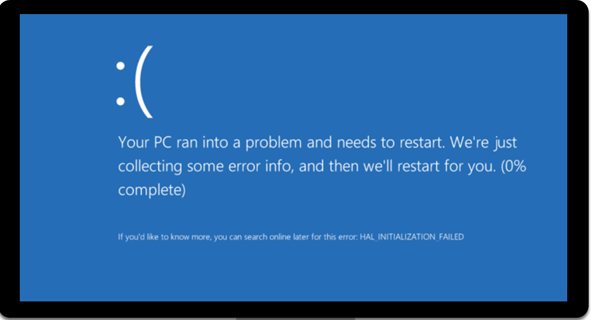
You might see other variations of this error message (depending on your Windows version). The most common variant is: “Your PC ran into a problem and needs to restart as soon as we’re finished collecting some error info.”
This message and its variants (such as, “Your system ran into a problem” or “Windows ran into a problem and needs to restart”)—all belong to the same Blue Screen of Death (BSOD) family of errors.
Types of BSOD Errors (STOP Codes)
Most BSOD screens show a STOP code (also called bug checks or kernel errors): a short hex value Windows uses to pinpoint the crash. Here are the ones users see most often.
| STOP Code | Name of the Code | Typical Hint |
|---|---|---|
| 0x00000050 | PAGE_FAULT_IN_NONPAGED_AREA | Faulty RAM / corrupted NTFS volume |
| 0x0000000A | IRQL_NOT_LESS_OR_EQUAL | Faulty driver / hardware issues |
| 0x000000EF | CRITICAL_PROCESS_DIED | System file corruption |
| 0x0000007B | INACCESSIBLE_BOOT_DEVICE | Boot drive error / incorrect BIOS settings |
| 0x00000124 | WHEA_UNCORRECTABLE_ERROR | Hardware failure |
| 0x0000003B | SYSTEM_SERVICE_EXCEPTION | Driver or software conflicts |
Note: For most users, the table above or the comprehensive list of STOP codes on Microsoft’s website is not very helpful. They don’t tell you much about how to resolve the “PC ran into a problem and needs to restart” error. That’s where the troubleshooting steps outlined in this guide come in handy.
List of Fixes for “Your PC Ran Into a Problem and Needs to Restart” Error
| # | Fix | What it does | Time | Difficulty |
|---|---|---|---|---|
| 1 | Enter Safe Mode | Loads core drivers only so that you can try out further troubleshooting | 2 min | ★ |
| 2 | Roll back / update drivers | Removes buggy code | 5 min | ★★ |
| 3 | Uninstall recent updates | Reverts bad patches | 5 min | ★★ |
| 4 | DISM + SFC repair | Rebuilds system files | 10 min | ★★ |
| 5 | Windows Memory Diagnostic | Tests RAM for faults | 15 min | ★★★ |
| 6 | System Restore | Returns to last good state | 10 min | ★★ |
| 7 | Bootable USB repair / data rescue | Fix boot files or copy data | 15 min | ★★★ |
To make troubleshooting simpler, we have grouped the root causes of “your PC ran into a problem and needs to restart” error into two main buckets: Software and Hardware.
| Bucket | Typical Triggers | Examples |
|---|---|---|
| Software | • Corrupted system files • Faulty or incompatible device drivers • Failed or incomplete Windows updates • Conflicting third-party software • Malware or ransomware infections • Incorrect BIOS/UEFI configuration | A new graphics driver pushes the kernel into an IRQL_NOT_LESS_OR_EQUAL panic. A botched update makes your OS display the “your PC ran into a problem and needs to restart” error on loop when you startup your laptop. |
| Hardware | • Failing hard disk drive (HDD) or SSD • Defective RAM (memory modules) • Overheating or thermal throttling • Power supply instability or surges • Loose or damaged cables and ports • Physical damage to motherboard/connectors | An aging NVMe drive throws INACCESSIBLE_BOOT_DEVICE immediately after POST. Bad RAM causes PAGE_FAULT_IN_NONPAGED_AREA mid-game. |
Understanding which bucket you’re in saves hours of guesswork and tells you whether a quick Safe-Mode driver rollback will do, or whether you should back up files and test the hardware first.
Fixing “Your PC Ran Into a Problem” Error
Step 1: Carry Out Windows Repairs in Safe Mode
When you run into the “PC Needs to Restart” error, we recommend you first try the fixes most likely to work when the crash is triggered by software installation errors, wrong driver updates, corrupted system files, or a half-finished Windows Update.
We’ll first put the system into Safe Mode and then run a series of repairs.
A. How to Boot Into Safe Mode on a Non-Booting Laptop (Windows 11/10)
- Start your laptop by pressing the power button.
- As soon as you see the Windows logo or spinning dots, press and hold the power button for 5–10 seconds to force a shutdown.
- Repeat this process 2–3 times.
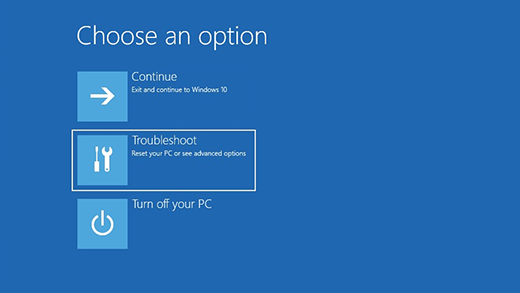
- After the third forced shutdown, Windows will automatically enter Recovery Mode on the next boot.
- On the blue Choose an option screen, pick Troubleshoot ► Advanced options ► Startup Settings ► Restart.
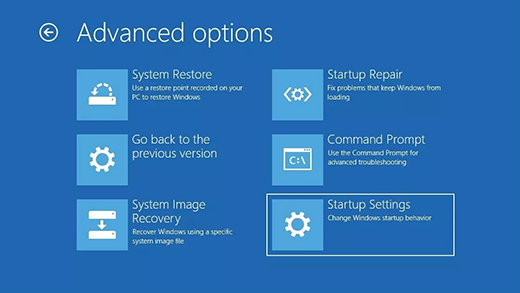
- When Startup Settings appears, tap 4 / F4 to enable Safe Mode.
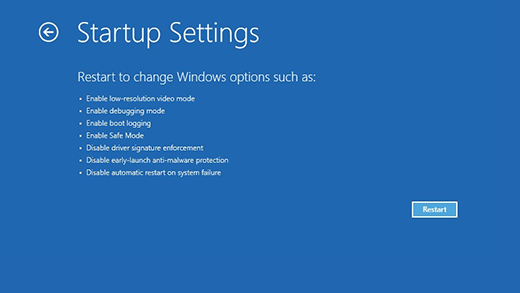
- Sign in; Windows loads with only essential drivers so you can bypass the BSOD error loop and start repairing.
B. Roll Back or Update Drivers
- Press Win + X ► Device Manager.
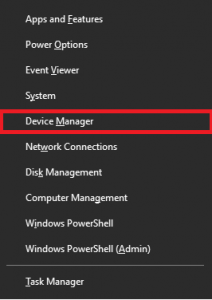
- Expand the problem device. Double-click the device icon ► Driver tab ► Roll Back Driver (or Update driver).
- If the BSOD reappears, boot into Safe Mode again and move to the next solution.
C. Uninstall Recent Windows Updates
- Settings ► Windows Update ► Update history ► Uninstall updates.
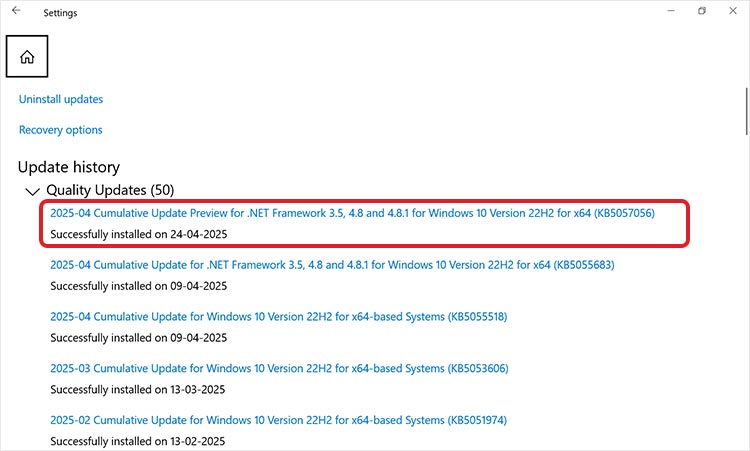
- Select the latest Quality or Feature update ► Uninstall.
- If the BSOD reappears, boot into Safe Mode again and move to the next solution.
D. Repair System Files (SFC + DISM)
- Open Command Prompt (Admin).
- Type DISM /Online /Cleanup-Image /RestoreHealth ► Hit Enter.
- After “operation completed,” type sfc /scannow ► Hit Enter.
- Restart and check if the “PC ran into a problem and needs to restart” error still appears.
E. Check RAM with Windows Memory Diagnostic
- Press Win + R, type mdsched, and hit Enter.
- Choose Restart now and check for problems.
- After the test, open Event Viewer ► Windows Logs ► System and review MemoryDiagnostics-Results. Bad RAM often triggers PAGE_FAULT_IN_NONPAGED_AREA and similar STOP codes.
Once these repairs are performed, reboot normally.
If the BSOD returns when you reboot normally, your Windows install is probably damaged beyond easy repair, or key boot files are missing. Move on to the next solution.
Step 2: Use a Bootable Media to Attempt Repair
Use this method if you’ve already tried Safe Mode repairs but Windows still won’t boot. It’s especially useful when your system shows signs of file corruption or broken boot records—such as missing operating system errors or repeated BSOD loops.
- Create media on a working PC using Microsoft’s Media Creation Tool or the built-in Create a recovery drive wizard.
- Boot from USB/DVD, choose Repair your computer ► Startup Repair to automatically fix common boot issues, or use Command Prompt for manual commands like bootrec /fixmbr, bootrec /scanos, and chkdsk /r.
If these tools fail and you need to reinstall Windows, you’ll have to back up your data first. In that case, move to the next method.
Step 3: Restore Windows to a Working Snapshot
Use this if you believe you may have installed a software (other than a driver or Windows update) that caused the instability—and if you have a system restore point from the recent past.
Here’s a clear, step-by-step guide on how to use System Restore via the Windows Recovery Environment when your laptop is not booting. Use steps 1 to 4 described in Step 1 – A to enter the Windows Recovery Environment.
- Enter the Windows Recovery Environment.
- On the Choose an option screen, click Troubleshoot → Advanced options → System Restore.
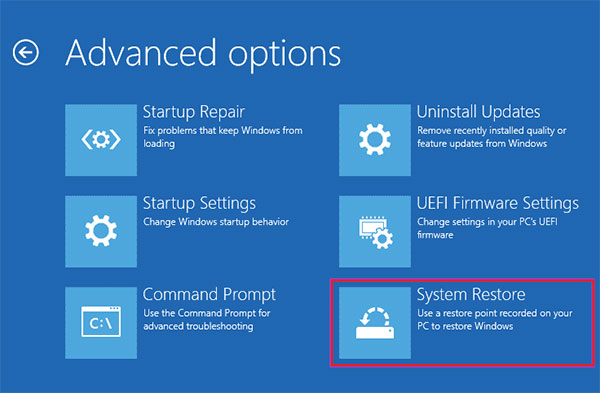
- The System Restore wizard will open.
- Click Next
- Select a restore point created before the problem started.
- Click Next again, then Finish to begin the restore process.
- Wait while Windows restores system files, registry settings, and drivers.
- After completion, the system will restart automatically.
Step 4: Seek Help From Professional Data Recovery Service to Safely Recover Your Data
If none of the methods described above solve “your system ran into a problem and needs to restart” problem, the culprit is probably your hardware. Common issues include:
- Scratched HDD platters or seized spindle motors
- Worn-out SSD NAND cells or corrupted controller firmware
- Broken SATA/NVMe connectors, loose flex cables
- Power-surge damage that blows drive PCBs or fuses
When mechanical components or firmware are damaged, each power-on power-off cycle increases the risk of permanent data loss. If the data saved in your drive is valuable or critical, you should stop relying on DIY methods and contact a reputable data recovery service provider.
Stellar Data Recovery is UK's leading service provider with a nationwide presence. At Stellar, you will get:
- Free phone consultation—Experts will gauge if you need data recovery services and the chances of successful recovery.
- Doorstep pick-up—Your device travels in electrostatic-discharge-safe packaging to the nearest Stellar lab.
- ISO-certified Class 100 cleanroom—Technicians perform thorough inspection and replace faulty parts in a protected environment.
- 15,000-part donor library—Needed to match failed components of any make or model.
- Highest success rate in UK.
Caution: Avoid local shops that pry drives open on a workbench; one speck of dust can ruin the platter surface and make your data unrecoverable. Let Stellar handle the data recovery from hard drive while you focus on getting back to work.
Facing similar hard drive problems? Check out these articles for tips on how to diagnose and fix them:
FAQs
It signals Windows hit a fault it could not correct — often a dying SSD/HDD, bad RAM, or overheating CPU/GPU. Hardware tests (SMART, Memory Diagnostic) will confirm the culprit.
Start with Safe Mode, roll back drivers or updates, run DISM and then SFC, and uninstall suspect software. If that fails, use System Restore or a Windows USB to repair boot files.
Yes. From Windows RE, run: bootrec /fixmbr, bootrec /fixboot, and chkdsk /f /r C:. These commands rebuild boot sectors and map bad disk blocks that trigger INACCESSIBLE_BOOT_DEVICE.
Absolutely. Corrupt memory throws STOP codes like PAGE_FAULT_IN_NONPAGED_AREA. Run Windows Memory Diagnostic; replace any module that shows errors.
Create a Stellar Data Recovery bootable USB, launch its interface, scan the internal drive, and save the files to an external disk before reinstalling Windows.


About the author