How To Fix Internal Hard Disk Detected But Not Accessible? [2026 Easiest Guide]
-
 Written By Kees Jan Meerman
 -
 Updated On Jul 15, 2026
 -
 Min Read 5 Min
 - Share this

Summary: To fix an internal hard disk detected but not accessible, you can try any of the methods below. Or you can use Stellar Data Recovery software or our professional data recovery services to recover data when an internal hard drive detected but not accessible.
Sometimes, your computer might show that your internal hard drive is there. But when you try to access it, you can’t actually get to your files.
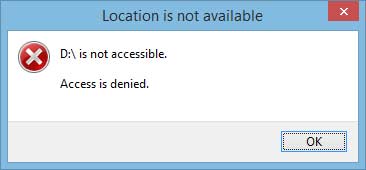
This can be really frustrating.
The worst part? This issue can even lead to losing important data.
The good news, however, is that it is fixable. There are different reasons why it happens and based on what is causing the issue, it is possible to resolve it.
Causes Of Internal Hard Disk Detected But Not Accessible
There are several reasons why you are seeing the internal hard disk detected but not accessible issue.
Some of them are explained below:
| Cause | Explanation |
|---|---|
| File System Corruption | Damaged or corrupted file systems make it impossible to read file structures correctly. |
| Bad Sectors or Disk Damage | Physical damage or bad sectors make portions of the hard drive unreadable. |
| Disk Errors or Disk Full | Errors or a full hard drive can disrupt data access. That's because the operating system may struggle to write or retrieve information. |
| Faulty Data or Cable Connections | Poor connections between the hard drive and the motherboard can disrupt data transfer. |
| Virus or Malware Infections | Malware can encrypt or lock files, rendering them inaccessible for security reasons and thwarting data theft or manipulation. |
| Disk Password or Encryption | Encrypted drives or password protection require the correct credentials for access. |
| Operating System Issues | Problems with the operating system can cause difficulty accessing the hard drive due to issues like unrecognizable file systems or driver problems. |
| Permission or Ownership Settings | Incorrect permissions can restrict access, preventing data access due to inadequate privileges or incorrect ownership settings. |
| Internal Hard Drive Failure | Hardware issues, like a malfunctioning read/write head or controller board, can result in improper hard drive function. |
| Data Corruption | Data corruption within files or the filesystem can make files unreadable or result in data loss, causing data inaccessibility. |
Based on what issue is causing the internal hard disk detected but not accessible issue, you can choose from the fixes mentioned below.
How To Fix ‘Internal Hard Disk Detected But Not Accessible’ Issue ?
Method 1: Change Drive Ownership
At times, encountering an error message stating that a drive is inaccessible may signal the necessity of adjusting the owner status within the Windows operating system.
Here’s how to do it:
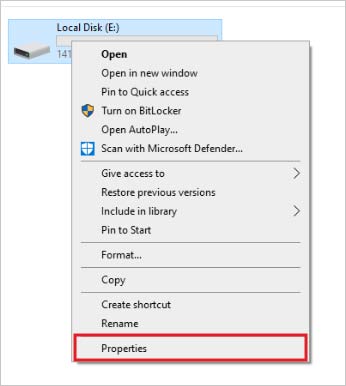
- Begin by right-clicking on the inaccessible hard drive, then select the “Properties” option.
- Navigate to “Security” > “Advanced“
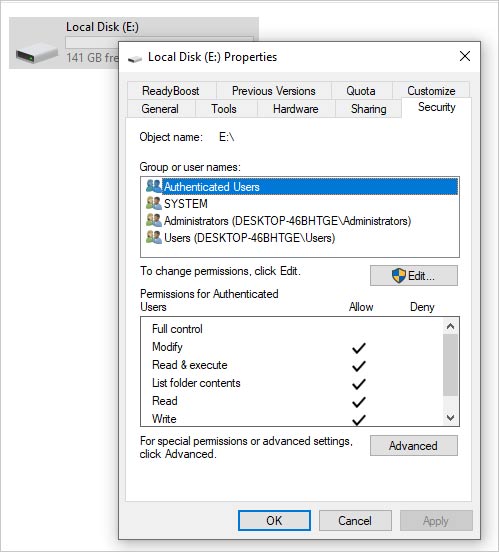
- Modify the ownership settings for the specific account on the “Owner” tab.
Method 2: Check And Repair File System
If file system issues are preventing access to the hard drive, you should check and repair it using these steps.
- Press “Windows Key + X” and select “Windows Powershell (Admin)“.
- In the Windows Powershell window, type “chkdsk /f [drive letter]:” (e.g., “chkdsk /f E:”) and press Enter.
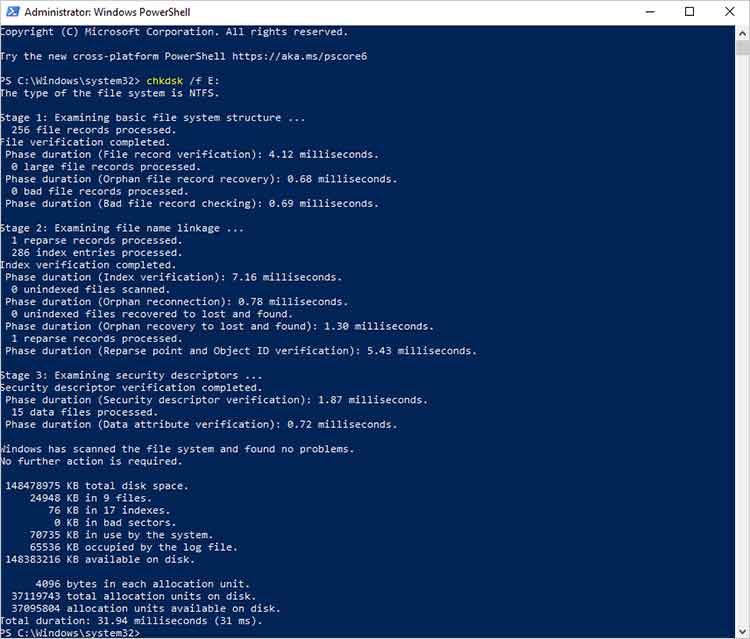
- If there are issues, a message will ask if you want to schedule the disk check for the next restart. Type “Y” and press Enter.
- Restart your computer, and Windows will check and repair the file system during boot.
Method 3. Check Disk Errors
- Open “This PC” (or “My Computer”) and right-click on the problematic hard drive.
- Select “Properties“, go to the “Tools” tab, and click “Check” under the Error Checking section.
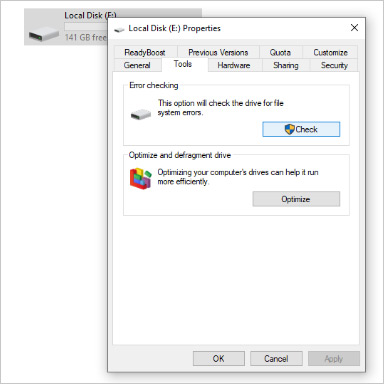
- If there are issues, a dialog box will appear; select “Scan and repair drive“.
- Follow the on-screen instructions to fix any errors detected during the scan.
Method 4. Reconnect And Replace Cables
Sometimes the resolution to internal hard disk detected but not accessible issues is as simple as reconnecting or replacing the cables. If you notice damaged cables, replace them with new, functioning ones.
But remember: Power off your computer and unplug it from the electrical outlet before disconnecting any cables.
Method 5. Remove Malware Or Viruses
Malware or viruses can encrypt or lock files, making them inaccessible. Run a full system scan using reliable antivirus software.
Then follow the software’s instructions to quarantine or remove any detected malware or viruses.
Method 6: Change Drive Letter For Internal Hard Disk Detected But Not Accessible
Changing the drive letter can resolve accessibility issues related to conflicting drive letter assignments.
- Press “Windows Key + X” and select “Disk Management” from the menu.
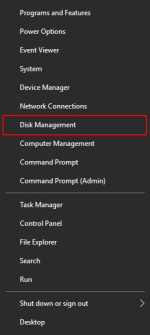
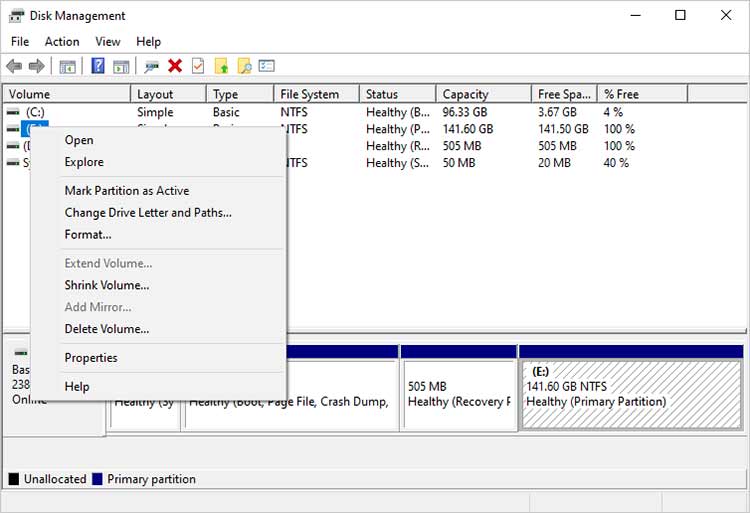
- Locate the inaccessible drive. It will be labeled with its current drive letter (e.g., “D:” or “E:”).
- Right-click on the drive you want to change the letter for and select “Change Drive Letter and Paths“.
- In the “Change Drive Letter and Paths” window, click “Change“.
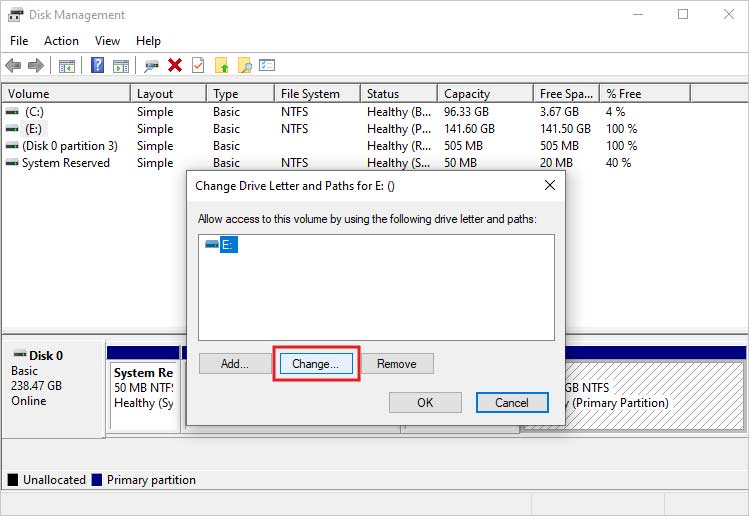
- Choose an available drive letter from the drop-down menu, or click “Add” to assign a new, unused drive letter. Make sure it does not conflict with existing drive letters.
- Click “OK” to confirm the change. You may receive a warning that programs or shortcuts relying on the drive letter may not work correctly; proceed if you’re sure about the change.
Windows will adjust the drive letter, and you should now be able to access the drive under its new letter.
What If Nothing Can Solve Your ‘Internal Hard Drive Is Detected But Not Accessible’ Issue ?
If none of the issues fix your internal hard disk detected but not accessible issue, you might be world about losing your data.
All’s not lost yet.
Even if the drive isn’t accessible, data recovery is possible.
The best way to recover data when an internal hard drive detected but not accessible is to...
1. Use Data Recovery Software (in case of logical failure of the hard drive)
Reliable software, like Stellar Data Recovery software, is effective for retrieving data. Even from an inaccessible hard drive due to file system corruption or errors.
However, in many cases, the cause of the problem is physical.
2. Use Data Recovery Service (in case of physical failure of the hard drive)
When an internal hard disk is detected but not accessible, physical issues might be the culprit.
Unlike software-related problems, these physical damages typically cannot be fixed with software tools.
Here are key physical causes:
- Physical Trauma: Drops or impacts can harm the disk’s internal parts.
- Wear and Tear: Continuous use can degrade the mechanical parts over time.
- Faulty Read/Write Heads: Damaged or misaligned heads hinder data access.
- Platter Damage: Even minor scratches can render data unreadable.
- Motor Failure: If the motor doesn’t spin the platters, data access is blocked.
- Firmware Issues: Corruption in the hard drive’s firmware can prevent data retrieval.
- Overheating: Excessive heat can damage the disk’s components.
- Contamination: Even minute particles entering a hard disk can cause disruptions.
- Electrical Surges: Sudden power spikes can harm the drive’s electronics.
If you encounter these issues, software recovery won’t suffice.
Instead, professional data recovery services with specialized environments, like Class 100 cleanrooms, are necessary.
Avoid DIY fixes for physical damages to prevent further data loss. Always consult professionals for the best chance at data retrieval.
Reach out to our data recovery experts to explore the chances of recovering data from your hard drive and to get details about recovery costs.
Our hard drive data recovery services are the best in class as we:
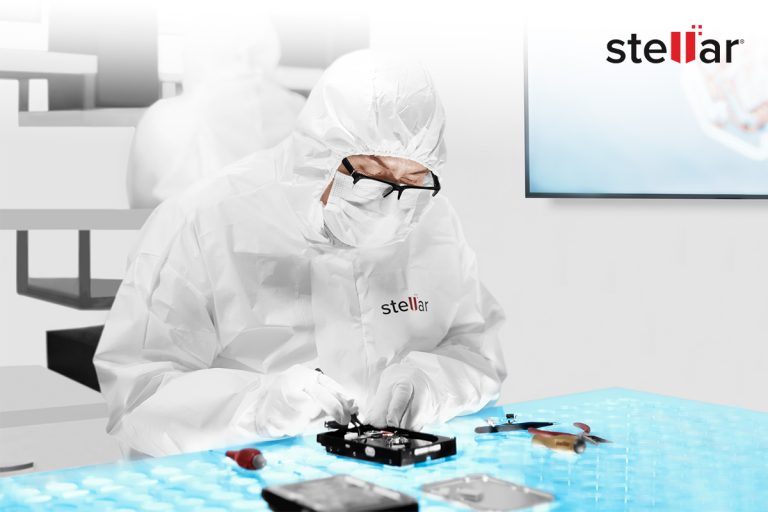
- Have the highest industry success rate in recovering data from Hard Disks.
- Ensure 100% data privacy
- Have Class 100 Clean Rooms
- Have a No-Recovery-No-Charge policy.
Request your free hard drive data recovery quote today.
If your hard drive issue goes beyond accessibility problems, the following articles cover other common HDD failures and troubleshooting scenarios in detail.
FAQs
Formatting should be the last resort, as it erases all data on the drive.
Try other methods first, as formatting will make the recovery of data when an internal hard drive detected but not accessible harder.
If the data is not essential and you’re certain that the drive’s file system is causing the internal hard disk detected but not accessible, you can consider formatting it.
Yes, you can connect the problematic hard drive to another computer as a secondary drive. If the issue is due to the computer configuration or software, this can help you access and recover the data.
If you want to avoid having to worry about the recovery of data when an internal hard drive detected but not accessible, you should:
Regularly back up your data to an external storage device or cloud storage.
Additionally, monitor your hard drive’s health. You can use tools like SMART diagnostics.
And replace failing drives promptly.
These precautions will prevent internal hard disk detected but not accessible issues.


About the author