How To Fix External Hard Disk I/O Device Error? [2026 Easiest Guide]
-
 Written By Kees Jan Meerman
 -
 Updated On Jun 25, 2026
 -
 Min Read 5 Min
 - Share this

Summary: I/O device errors are a frequent cause of data loss in external hard drives. This guide explores their common causes, provides nine DIY solutions, and explains why professional data recovery services are essential for handling physically damaged drives.
An I/O device error occurs when the computer is unable to access a connected drive. This issue often triggers the following message:
“The request could not be performed because of an I/O device error.”
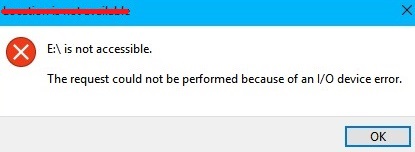
While these errors may seem alarming, they don’t indicate an immediate risk of permanent data loss. This guide provides detailed steps to resolve I/O device errors and explains how you can handle situations where fixes aren’t successful.
What Is an I/O Error?
An I/O (Input/Output) error occurs when a system encounters a problem while attempting to read data from or write data on a connected device. Essentially, it signals a communication failure between the computer and the storage medium.
This error is not exclusive to external hard disk drives. It can affect a wide range of storage devices, including internal or external HDDs/SSDs, USB flash drives, SD cards, and CDs/DVDs.
Before going through the methods to resolve an input/output error, let us understand the underlying causes behind these errors.
Main Causes of I/O Device Error
The most common causes of I/O device error in hard drives are:
- Faulty USB port
- Loose connection wires
- Driver issues
- Drive letter conflicts (OS Problem)
- Incompatible format in HDD
- Physically damaged hard disk drive
Any combination of the causes listed above could lead to this message getting displayed: “The request could not be performed because of an IO device error.”
Additional Reading: How To Fix Hard Drive Not Recognized Error
How To Fix I/O Device Error?
In this section, you will find nine methods to resolve the I/O device error and access your hard drive. The methods, listed in increasing order of complexity, fall under the subheadings: simple hardware fixes, driver updates, Windows tools & utilities, and advanced methods.
Step 1. Simple Hardware Fixes
1.1: Check Connections and Power Supply
I/O device errors are often caused by faulty or loose connections. If your external hard drive is connected via a USB hub, it may not be receiving adequate power. Disconnect the drive from the hub and connect it directly to your computer.
1.2: Try a Different USB Port or Cable
If the error persists, eject the drive, restart your computer, and reconnect the drive using a different USB port. If you suspect a faulty cable, replace it with a new one, which can be easily sourced online or from local stores.
1.3: Test on Another System
If the input/output error persists, it’s prudent to test the hard drive on a different PC or laptop. This step helps confirm whether the issue lies with the drive itself or your current system.
Step 2. Driver Updates
2.1: Reinstall or Update USB Drivers
Outdated or corrupt USB drivers can cause I/O errors and make your external hard inaccessible. To update your USB drivers, follow these steps:
- Hit the Windows key and type Device Manager in the search box.
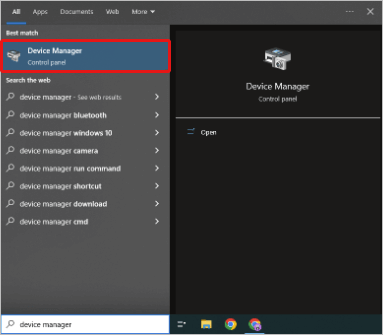
- Open Device Manager and scroll all the way down to Universal Serial Bus controllers.
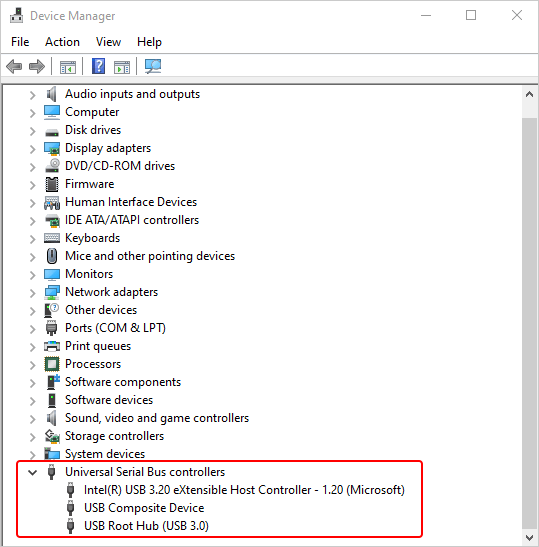
- Navigate to your external hard drive in the list and right-click on it. Your hard drive may be listed under names like “USB Mass Storage Device,” “External Drive,” or simply the brand name and model of the drive.
- Click on Update driver and let the computer check for any new drivers.
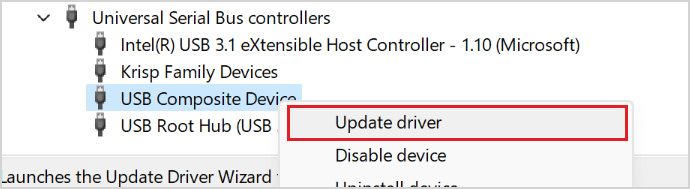
- Restart your computer and check to see if you can access your storage device.
2.2: Update SATA Controller Driver
To update SATA drivers, we follow the same process as USB controller driver updates.
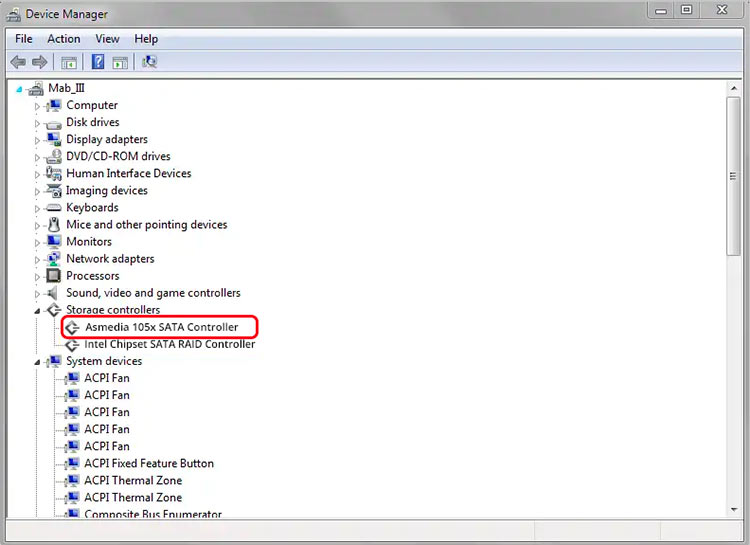
- Open Device Manager and locate the section labeled Storage Controllers.
- Double-click on the entry labeled SATA Controller to open its properties.
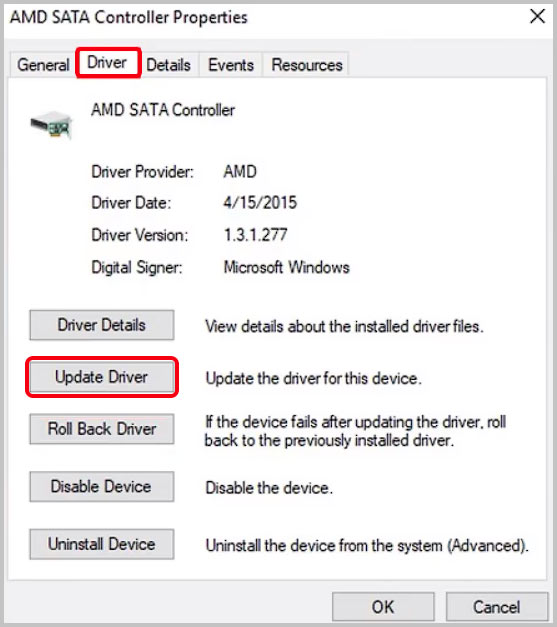
- In the Properties window, navigate to the Driver tab.
- Click on Update Driver.
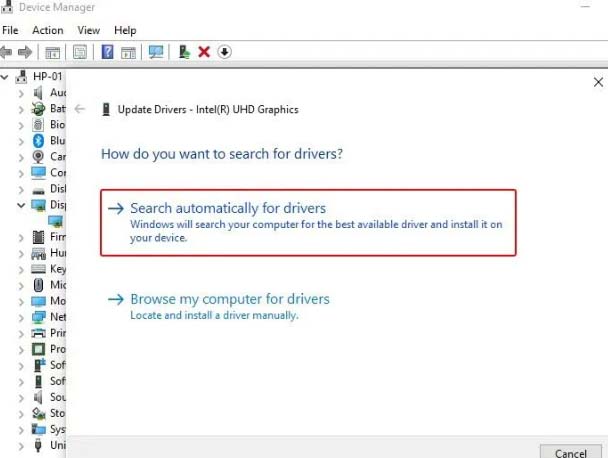
- Select Search automatically for drivers to allow Windows to check for updates online.
- Once the updated driver is installed, restart your computer and check if you can access the hard drive.
When using a USB-to-SATA adapter, the USB side connects to the PC’s USB port, while the SATA side connects to the external hard drive. Hence, unlike in pen drives, both USB and SATA controller drivers have to be updated in external HDDs.
Step 3. Windows Tools & Utilities
3.1: Change IDE Channel Properties
If your I/O device error persists, changing the IDE channel properties may help resolve the issue. Follow these steps:
- Press Windows + X and select Device Manager from the menu.
- Expand IDE ATA/ATAPI controllers to view the available channels.
- Right-click on the channel where the affected drive is connected (typically the secondary IDE channel) and select Properties.
- Navigate to the Advanced Settings tab and select PIO Only in the transfer mode box for the corresponding device (usually Device 0).
- Click OK and close all windows.
- Test the drive to see if the error message has been resolved.
3.2: Change The Drive Letter
Sometimes, your system could be reading the drive letter wrong, which could also cause input/output errors. Changing the drive letter will resolve the issue. Here is how to do it.
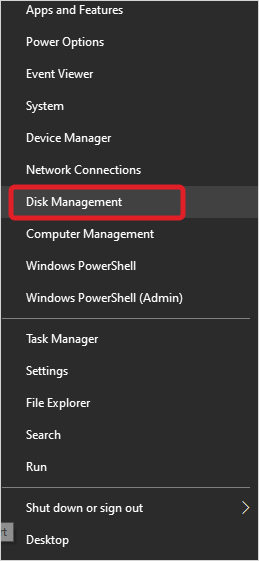
- Hit Windows Key and X.
- Next, click on Disk Management.
- Right-click on your external drive.
- Select Change Drive Letter And Paths.
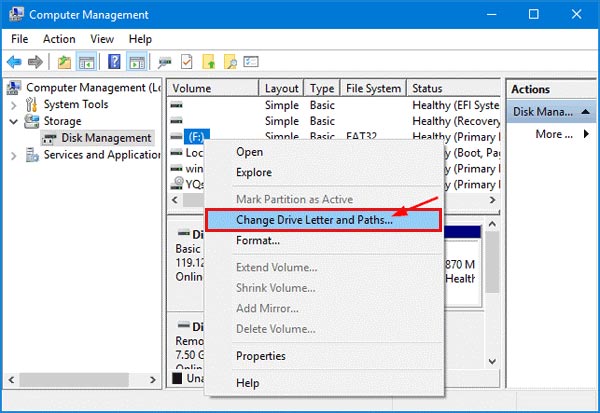
- A new box will open. Click Change and select an option from the menu.
- Click Apply, then click Yes when a pop-up dialog box appears.
Restart your computer with the drive still attached and check if the IO error message reappears.
3.3: Use The CHKSDK Function
If you still encounter input/output errors, it is fairly certain that the problem lies with your drive, not the computer.
Next, we will try to use the chkdsk tool to try and fix our external hard drive.
- Press the start key and type cmd.
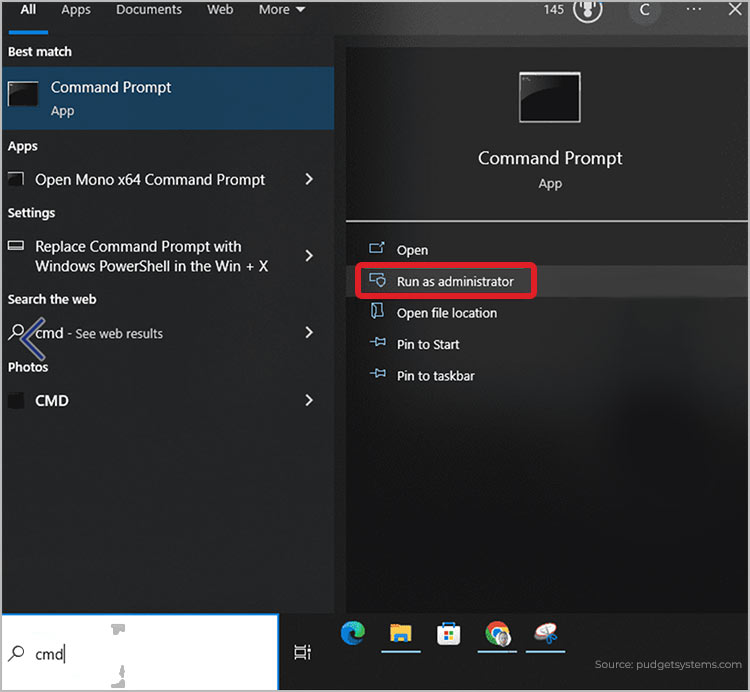
- Select the run as administrator option.
- In the Allow this program to make changes dialog box that shows up next, click Yes.
- The command prompt (admin) window will now open. Key in chkdsk H: /f /r /x” without the quotation marks.
Note: the “H” is to be replaced with the drive letter of your external hard drive. If your external drive letter is “D,” then the command would be “chkdsk D: /f /r /x”.
The chkdsk tool may take a fair amount of time to run. It depends on various factors such as how old your drive is, if it is corrupted or not, how much data it has, how powerful your computer is, etc. If it finds anything wrong with your drive, like bad sectors or file errors, it will attempt to fix those automatically.
Step 4. Advanced Methods
4.1: Perform a Clean Boot
If none of the previous methods resolve the I/O device error, performing a clean boot can help identify whether third-party applications are causing the issue. Follow these steps.
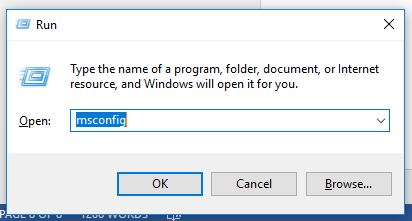
- Hit Windows key + R and type in MSConfig without the quotes. Hit enter.
- Navigate to the window labeled Services . On some machines, this may be called administrations.
- Click the Hide All Microsoft Services checkbox. Again, on some machines, this may be called Hide all Microsoft Administrations.
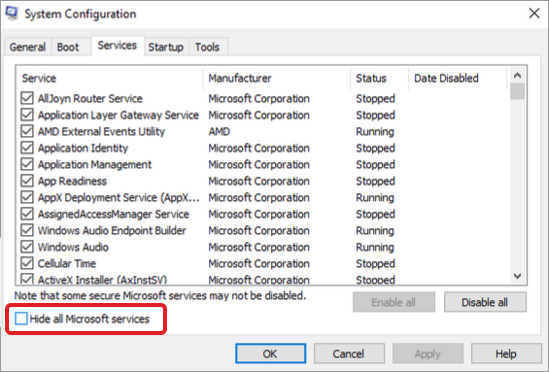
- Next, click on the disable all toggle. Hit Apply.
- Next, click on the startup window and select Task Manager.
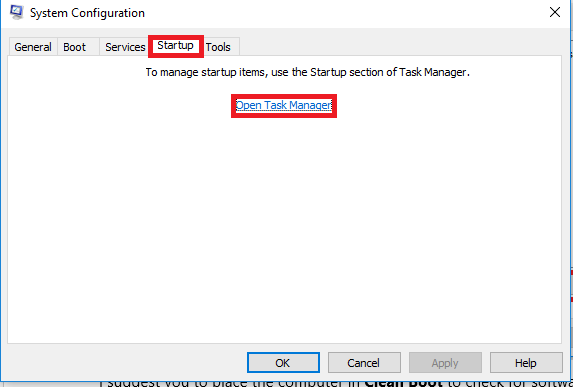
- Navigate to the startup apps pane in Task Manager.
- Right-click all services that say enabled. Click on disable.
- Repeat this process for all apps in the list.
- Return to the System Configurator.
- Click OK and Restart your computer.
When to Seek Professional Help
If none of these methods resolve the error, the problem may stem from physical damage or firmware failure. In such cases, professional data recovery services like Stellar Data Recovery can prevent further damage and safely retrieve your valuable data.
Why to Opt for Stellar Data Recovery Service?
At Stellar Data Recovery, we have seen many cases where users encountered input/output (I/O) errors on their external hard drives and later realized the error was due to physical damage. When this happens, data recovery becomes a highly sensitive task, and we strongly recommend trusting India’s premier data recovery service provider.
Stellar Data Recovery has over 30 years of experience in recovering data from even the most severely damaged hard drives, including those with mechanical failures, firmware corruption, or scratched platters. The best practice for handling physically damaged drives is to work on them in a controlled, dust-free environment. Stellar houses India’s only ISO-certified Class 100 cleanroom, where experts disassemble and operate on the hard drives. This prevents contamination and protects the delicate read/write heads and platters during the recovery process.
Our extensive donor library contains more than 15,000 hard drives, which allows for precise part replacements (heads, head stack assemblies, spindles, etc.) when required. This is essential because even a slight mismatch in head alignment or firmware compatibility can compromise the recovery. At Stellar, your drive will be handled by expert technicians who specialize in specific hard drive brands and models, ensuring the highest chance of success.
These factors contribute to our industry-leading success rate in data recovery. The first step to getting your data back is to call us for a free consultation, where our executives will guide you through the next steps.
If you’re facing other hard disk errors, these related articles may help you find effective solutions.
Frequently Asked Questions- I/O Device Error
In most cases, I/O error don’t lead to permanent data loss. The data is often intact but temporarily inaccessible. However, if the error is due to physical damage, there’s a risk of data loss.
The time varies depending on the cause. Simple fixes like changing USB ports or updating drivers can take a few minutes. On the other hand, more complex issues including physical damage require professional assistance and take longer.
CHKDSK is a built-in utility that can scan for and fix minor logical errors but cannot address hardware issues. For severe problems, professional data recovery services are necessary to retrieve your data safely.
Attempting self-repair might void your warranty. It’s advisable to check with the manufacturer or warranty provider first.
Repeated input/output errors may indicate that the drive is nearing the end of its lifespan. Replacing the drive promptly is advisable to avoid potential data loss.
Performing a clean boot is a standard troubleshooting step. It does not affect personal files. It merely restricts the startup of non-essential applications, which can help diagnose the cause of the error.
Yes, older hard drives are more prone to experiencing IO error. This is due to wear and tear, outdated technology, and potential incompatibilities. Also, IO errors are more rampant among low-RPM hard drives, which could also be a factor.


About the author