External Hard Drive Not Detected – Causes & Troubleshooting Guide
-
 Written By Kees Jan Meerman
 -
 Updated On Jun 25, 2026
 -
 Min Read 5 Min
 - Share this

Summary: USB devices such as external hard drives, pen drives, and memory cards allow users to store and transfer large amount of data conveniently. They are portable and provide ease of access, but may become unresponsive over time. This happens when the USB port fails to recognize an external USB drive, and the error message: “external hard drive not detected” or “USB Device Not Recognized” is displayed.
In this blog, we will list the causes and provide detailed solutions to fix each type of underlying issue.
Identifying USB Device Not Recognized Error and Preliminary Checks
You might have seen the following message pop up on the screen while trying to connect an external hard disk or a pen drive.
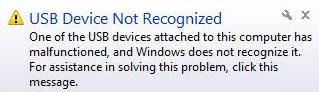
The ambit of such errors includes access denial, file system errors, device not formatted alerts, unsupported file system messages, and physical failure in external hard disk.
Preliminary Checks: The Quick Fixes
Before we dive into complex solutions, it’s worth ticking off these basic checks:
1. Check USB Cables: Ensure the cable is securely connected and undamaged. Additionally, try swapping the USB cable with another to rule out any damage.
2. Try a Different Port or PC: Plug the portable hard disk into another USB port. Preferably, use one located at the back of a desktop PC for more power. If that doesn’t work, try connecting it with a different computer.
3. Avoid USB Hubs: Don’t connect via USB Hubs. Directly connect the drive to your computer for optimal power.
4. Look for Indicator Lights: Most external hard disks have LEDs to signal activity. If the light is not on or blinking, the device might have physical damage.
It is likely that the quick fixes did not help. In that case, let’s take a look at the underlying causes before moving on to solutions.
Hard Disk Not Detected – Common Causes
Understanding why a PC cannot recognize your external hard disk is the first step toward resolving the issue. The most common reasons for this are listed below.
1. Power Supply Problems: If your USB port doesn’t provide sufficient power, the device will fail to operate. This happens with outdated hardware or if you are trying to connect via USB hubs.
2. Outdated or Corrupted Drivers: An incompatible USB device driver will not be able to establish a connection between Windows and your device. Similar to drivers, outdated firmware can also result in hard disk detection errors.
3. File System Corruption: Improper ejection, malware attacks, or frequent power outages can lead to a corrupted file system, rendering the external hard disk unreadable.
4. Faulty Connections: Loose or damaged cables, defective USB ports, or worn-out connectors often disrupt communication.
5. Partition Errors: Devices with lost or broken partitions or marked as “Not Initialized” will fail to appear in File Explorer.
Follow the troubleshooting guide given below to apply complex solutions and access your external hard disk or USB device.
How to Repair External Hard Disk Not Detected
Below, we are sharing 8 important steps to resolve the window external hard drive is not detected error.
Step 1. Leverage Disk Management Tool
Windows Disk Management is a powerful tool that can help you detect and fix external drive problems.
- Press Windows + X and select Disk Management
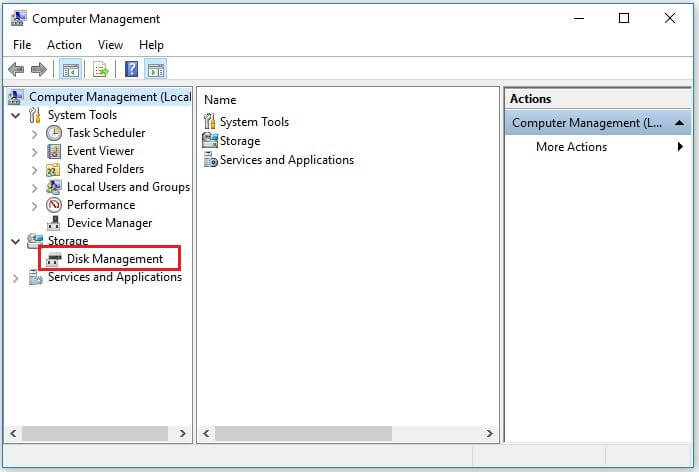
- Check for the external drive in the list.
- If it is marked as “Not Initialized,” right-click it and choose Initialize Disk .
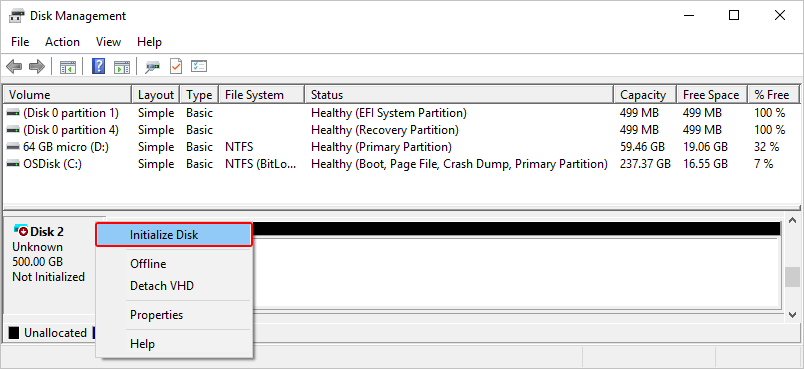
- Follow the prompts to create a new partition.
- Drives without partitions will need one created to become accessible.
Step 2. Update or Reinstall Drivers
Drivers act as the middleman between your operating system and hardware. Faulty drivers are a common cause of detection errors.
- Press Windows + R , type devmgmt.msc , and press Enter .
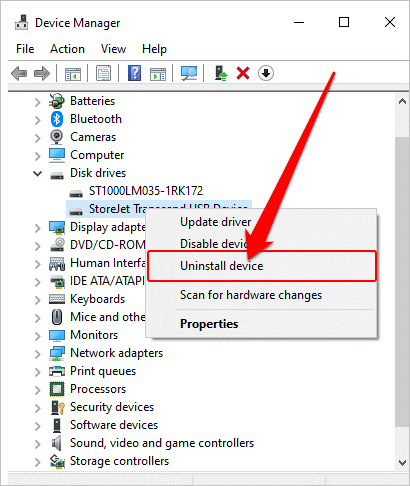
- Expand Disk Drives and locate your external hard disk.
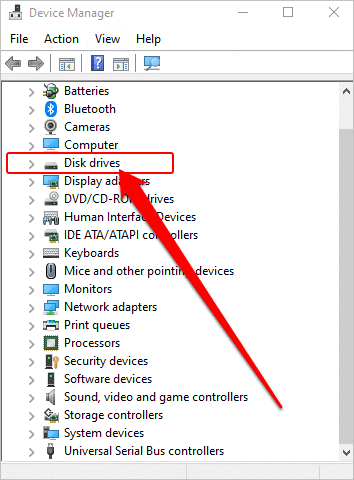
- Right-click the drive, select Update Driver Software, and follow the prompts.
- If updating doesn’t work, choose Uninstall Device, then restart your PC. Windows will reinstall the driver automatically.
[NOTE]: The issue will persist if the firmware for the USB device is outdated. In this scenario, you need to seek professional data recovery service to gain access to the device.
Step 3. Allocate a Drive Letter
Without a drive letter, Windows cannot display your external hard disk in File Explorer.
- Open Disk Management.
- Right-click your drive and select Change Drive Letter and Paths.
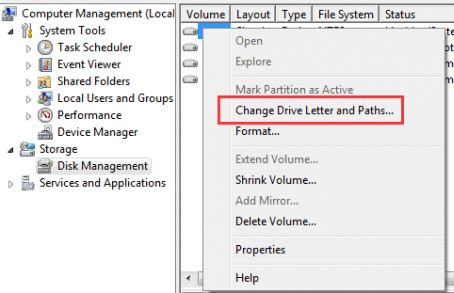
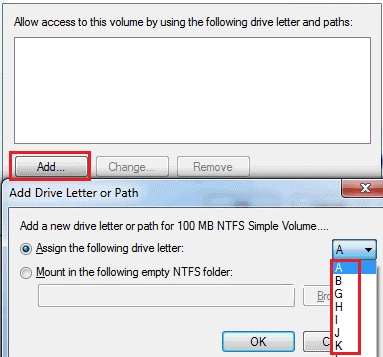
- Click Add or Change, assign a new letter, and save your changes.
Step 4. Adjust USB Power Settings
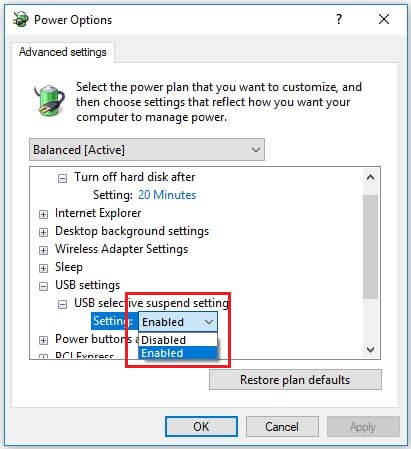
Windows’ USB Selective Suspend setting can sometimes interfere with connected devices.
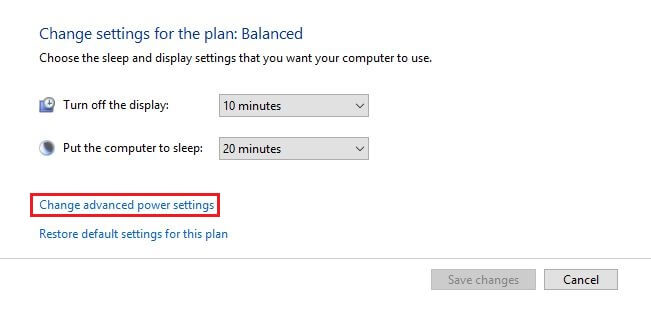
- Navigate to Control Panel > Hardware and Sound > Power Options.
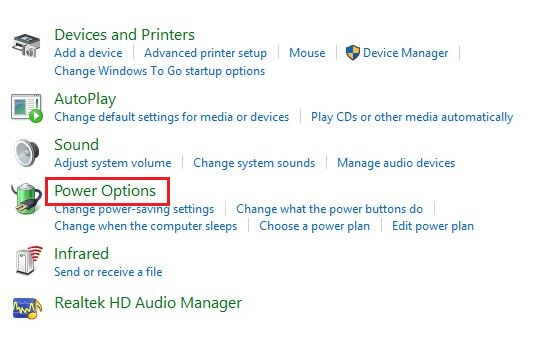
- Select Change Plan Settings for your active plan, then click Change Advanced Power Settings.
- Expand USB Settings and disable USB Selective Suspend Setting.
Step 5. Run Hardware Troubleshooter for Windows
Windows includes a built-in troubleshooter specifically for hardware and USB-related problems.
- Type Command Prompt in the search box. Right-click on Command Prompt icon and click Run as Administrator.
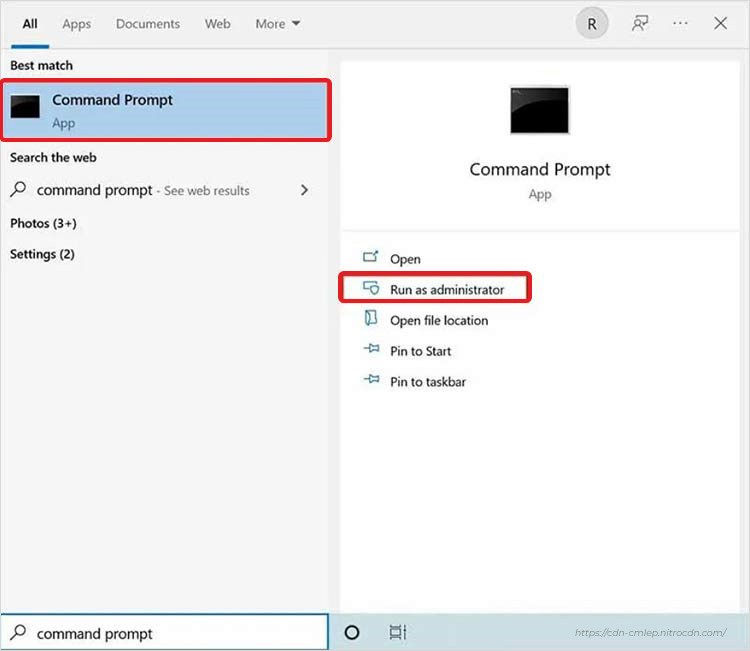
- Allow access by entering username and password.
- Type msdt.exe -id DeviceDiagnostic and press Enter. The troubleshooter will open.
- Click Advanced; then click Apply repairs automatically.
- Follow the prompts to run the scan and fix issues.
Step 6. Format the USB Device/External Hard Disk
If the device is recognized but inaccessible, formatting can resolve any underlying file system corruption.
- Open Disk Management, right-click the drive, and choose Format.
- Select NTFS or exFAT depending on your needs
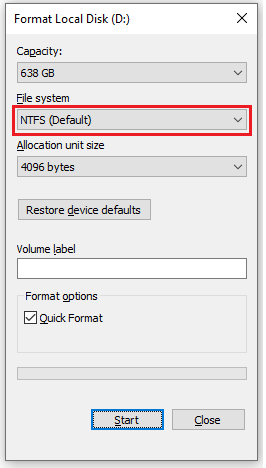
[NOTE]: exFAT file system works on Windows, macOS, and Linux, while NTFS has read-only accessibility on macOS
Format your external hard disk only when you have exhausted all other options—including seeking professional help.
Conclusion
If you are still unable to access the external hard disk or USB device, it is likely due to damaged internal components, such as platters and heads. Such damage should only be assessed by certified Hard Disk Data Recovery Professionals. Recovering data is still possible, but it requires a detailed diagnosis in a Class 100 Clean Room to ensure the best chance of recovering data.
Take care of your external hard disks by backing up data regularly, using high-quality equipment, and keeping your system updated. With proper precautions, you’ll enjoy years of reliable performance from your external storage devices.
Explore Related Articles on Hard Drive Issues and Data Recovery
FAQs
This could be due to missing drive letters, corrupted drivers, or insufficient power. Use Disk Management to troubleshoot.
Yes. Data recovery software or professional services can retrieve files from damaged drives unless they’ve been overwritten.
Updating or Reinstalling your drivers is quite simple. Just press Windows + R and type devmgmt.msc. Then press Enter. Upon expanding your Disk Drives, locate your external hard disk > Right-click on the drive > click on Update Driver Software, and just follow the prompts there after.
- Keep your drivers updated.
- Avoid using low-quality cables or USB hubs.
- Keep backups of your data on a regular basis


About the author