Windows 11 March Update Causing Crashes & Freezes: How to Recover Files (KB5079473)
-
 Written By Kees Jan Meerman
 -
 Updated On Jun 25, 2026
 -
 Min Read 3 Min
 - Share this

Summary: Windows 11 KB5079473 Issues
- The Problem: The March 2026 Windows security update (KB5079473) is causing crashes, freezes, and restart loops for some Windows 11 24H2 and 25H2 users.
- The Errors: Users are frequently reporting seeing Error Code 0x800704b3 and the BSOD stop code ATTEMPTED_WRITE_TO_READONLY_MEMORY (0xBE).
- The Solution: Do not reset or reinstall Windows yet. If your drive is still detected, use Stellar Data Recovery Professional to secure your files before attempting OS repairs and rollbacks.
If your Windows 11 PC has started freezing, restarting, and throwing a BSOD error after the March 2026 update, you need to protect your data first. KB5079473 is Microsoft’s cumulative update for Windows 11 24H2 and 25H2, and many users have reported freezes, failed installs and reboot loops, as seen in KB5079473 Windows 11 crash reports on Microsoft forums.
Some users also face “error 0x800704b3”, along with “ATTEMPTED_WRITE_TO_READONLY_MEMORY 0xBE” after installing this update.
Note: This does not mean every PC has been affected. Microsoft lists KB5079473 as a security and quality update, but some forum reports show this instability is showing up in a few systems, rather than all devices running Windows 11. Make sure you check your Windows Update version first
Why is My System Crashing After the KB5079473 Update?
KB5079473 is supposedly a cumulative update for Windows 11 version 24H2 and 25H2, and raises those branches to OS builds 26100.8037 and 26200.8037. The trouble starts after installation on some machines. Microsoft-hosted answers pages and March reporting describe hard freezes, full reboots, app launch failures, failed installs, lost unsaved work, and instability when users attempt tasks like screen sharing after the update.
Sometimes the system still reaches the desktop, but only briefly. Other times, Windows will load halfway, stall, then restart. That usually means the OS is damaged enough to be unreliable, but not necessarily damaged enough to make your files completely unrecoverable.
Why Does it Happen?
The most useful clue we have is the stop code ATTEMPTED_WRITE_TO_READONLY_MEMORY 0x000000BE. Microsoft’s debugger documentation says this bug check appears when a driver tries to write to a read-only memory segment. This is a strong sign of low-level driver trouble rather than just a normal app crash. This also matches the pattern in current reports. One user described repeated reboots and lost work. Another described that they had to restart every 10 to 20 minutes, one 0xBE blue screen, and error 0x800704b3 affecting Office, Outlook, Command Prompt, and Print Screen after the update.
What often happens next is also messy. A cumulative update changes your kernel files, servicing state, registry references, driver behaviour, and boot components all in one shot. So if a graphics driver, storage filter, endpoint security driver, or firmware layer reacts badly, Windows may crash even though your NTFS volume still holds all your documents, photos, project files, and emails intact.
Tip: This is why update-related failures can sometimes feel worse than they are; your machine seems broken, but your data often isn’t! Keep reading to see how Stellar Data Recovery can help you recover your files.
Which Signs Indicate That Your Data is Safe?
Some symptoms point to a Windows issue you can work around, and others are a clear warning: stop immediately and secure your drive.
| Symptom | What It Indicates | Probable Cause |
|---|---|---|
| Freeze after login | Windows starts, then hangs during normal use | Driver conflict, graphics instability, or service initialisation failure |
| Reboot loop after KB5079473 | Startup components are failing before Windows settles | Servicing rollback issue, boot chain problem, or low-level driver crash |
| Error 0x800704b3 | Core apps or system functions fail to open properly | Access path, permission, or dependency issue after the update |
| BSOD: ATTEMPTED_WRITE_TO_READONLY_MEMORY (0xBE) | A driver wrote to protected memory | Faulty or newly exposed kernel-mode driver issue |
| Update fails to install or retries | Windows Update cannot complete the package sequence | Corrupt servicing state or hardware-specific incompatibility |
Two of these symptoms need extra caution. If the drive disappears from BIOS or Disk Management, or the disk starts clicking, that is no longer just a Windows update story. That is when you stop DIY work and move straight to a professional data recovery service.
How Do You Recover Your Data After Windows 11 KB5079473 Update?
You need to start with recovery, not repair. Every extra reboot, failed rollback, repair install, or reset you do will just write more data to the system drive. On NTFS, this might overwrite file records, journal data, temporary files, and deleted entries that recovery software like Stellar could otherwise have reconstructed.
If your PC still boots, even for a few minutes, use Stellar Windows Data Recovery Software and recover your important files to another drive. This is the practical path for Windows 11 crash recovery, BSOD file recovery, recovery after a failed cumulative update, and recovery from an unbootable or unstable Windows PC.
Now, if your PC won’t boot properly, remove the SSD or HDD and connect it to a healthy Windows machine with SATA or a USB enclosure. That avoids more writes from the unstable installation and gives you a better chance to scan the volume, read the file system, and recover your data before you try OS fixes. Here are the steps:
- Shut your PC down fully. (Don’t do any repeated forced restarts.)
- If Windows is unstable, attach the drive to another healthy PC.
- Scan the affected volume with Free Stellar Data Recovery for Windows.
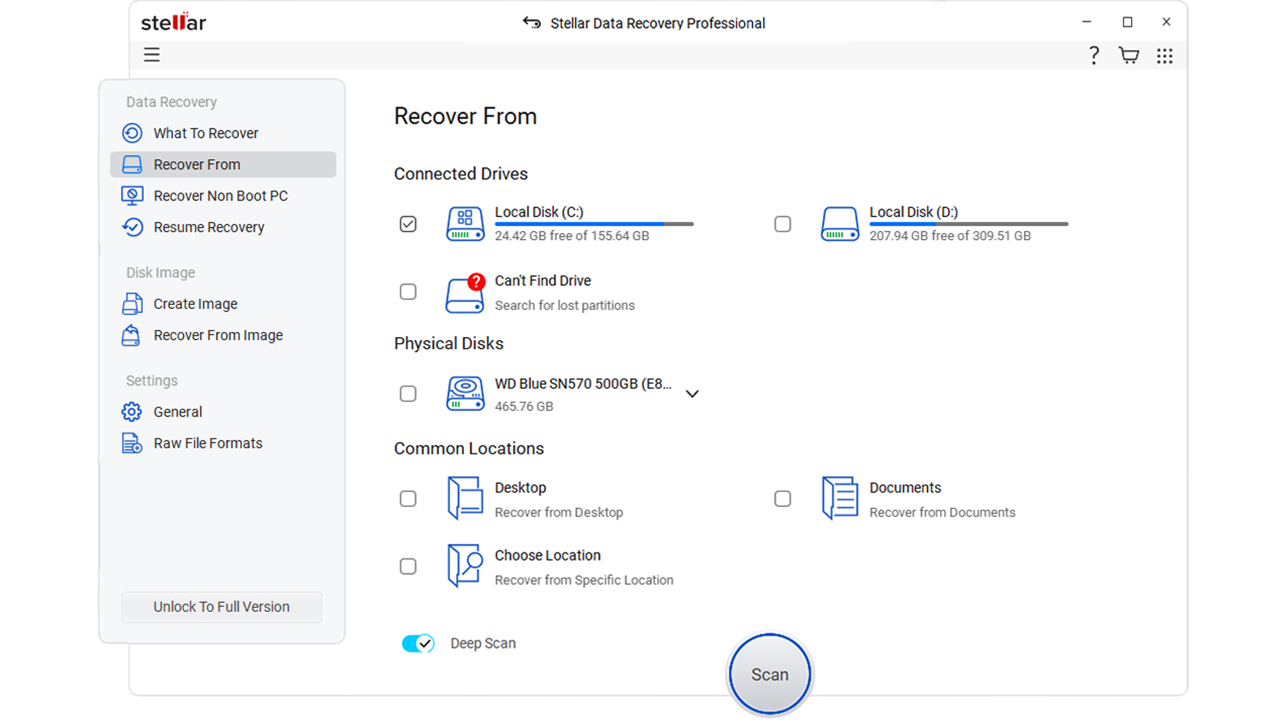
- Recover all your critical files first to a different disk.
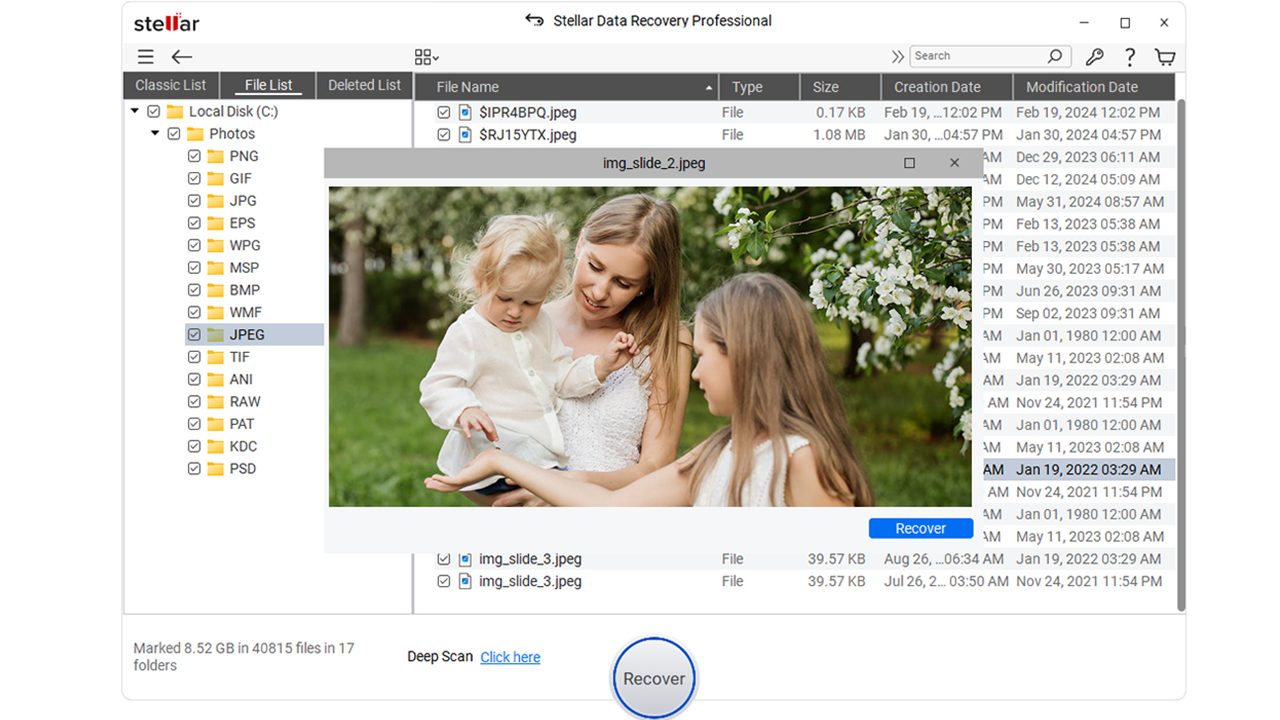
- Only after the data is safe, try uninstalling KB5079473, using System Restore, Startup Repair, or reinstalling Windows.
Warning: Never save recovered files back to the same affected drive. That can overwrite sectors you still need.
So remember, just don’t panic and rush into Reset this PC or a clean install just because Windows offers it. Those steps might fix the OS, but in our experience, they also reduce your recovery window.
Stellar’s Expert Insight
In our lab work, we usually split update-triggered failures into two layers. The top layer is Windows itself: unstable boot files, broken services, damaged registry references, or a bad driver chain is what we look at. The lower layer is your storage device, which often still holds recoverable user data (as long as the drive remains readable.)
That’s why even some “dead” systems are not really dead. If your SSD or HDD still responds at a block level, file recovery often has a better chance before you try reinstalls, partition rewrites, or a repair utility starts changing your disk again.
Why Choose Stellar to Recover Files After a Failed Update?
Stellar Windows Data Recovery Software fits this kind of case when your drive is still detected and you know for sure the failure is logical (as opposed to physical damage). This includes Windows update crashes, inaccessible partitions, deleted files after a failed repair attempt, and systems that won’t boot even though the storage media is still readable.
When your device itself is failing, software is not the answer. That’s why Stellar’s in-lab experts in India work from ISO 9001 and ISO 27001 certified facilities, which is the safest route for disks that disappear, click, or show physical faults beyond a normal Windows servicing issue.
Contact Stellar’s data recovery service today and get started on your journey to reclaim your lost files!
If you’re facing other errors, explore these detailed guides to diagnose, fix, and recover your data effectively.
FAQs
Yes. A failed update can break boot flow, permissions, service startup, or registry links, even while your files still remain on the disk, which is why data may look gone even when it is still recoverable.
Microsoft documents 0x000000BE as a bug check triggered when a driver tries to write to a read-only memory segment. In simple terms, this usually means a low-level driver conflict has occurred rather than a routine application error. Tools like Stellar Data Recovery Professional can help with recovery in such cases.
Not if your machine is unstable and your data matters. Recover the files first, because many users have already reported repeated crashes, failed installs, and restart loops after KB5079473, and more repair attempts can make recovery harder.
Software recovery can begin as soon as the affected drive is connected to a healthy Windows PC. For severe corruption or suspected hardware trouble, Stellar India’s only Class 100 Clean Room lab for data recovery is the safer next step.


About the author