How to Fix SMART Hard Disk Error Code 301 in HP Laptop?
-
 Written By Kees Jan Meerman
 -
 Updated On Aug 04, 2026
 -
 Min Read 5 Min
 - Share this

“The SMART hard disk check has detected an imminent failure. To ensure no data loss, please back up the content immediately and run the Hard Disk Test in System Diagnostics.
Hard Disk 1 (301).”
When a message like this appears as soon as you turn on your HP laptop, know that your hard drive needs a replacement. This is not an isolated issue. Many of us with HP laptops have faced such a warning. It’s your computer’s way of saying that you should back up your data—the drive may fail soon.
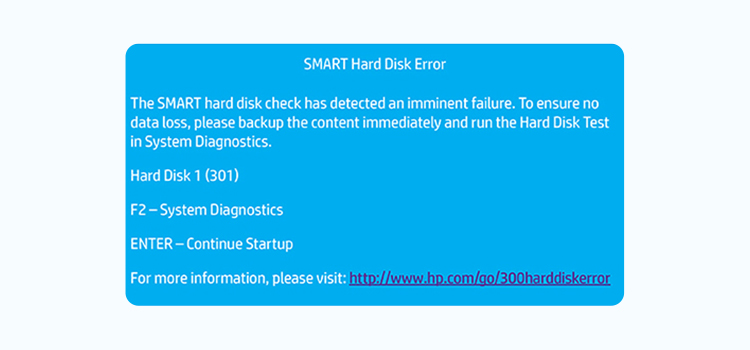
HP laptops have a built-in SMART check that scans the internal hard drive for bad sectors and other issues during the boot process. If issues are found, the SMART Hard Disk Error Code 301 appears, blocking the booting to prevent data loss. This article will give you a brief idea of the error and discuss the root causes, followed by clear steps to fix the issue.
What Is SMART Hard Disk Error 301?
Hard disk 301 shows up when a hard drive issue is identified by the system’s built-in diagnostics. This error indicates that the drive is failing or will probably fail shortly. It typically appears at startup with a message such as “Hard Disk 1 (301).” Physical damage, overheating, faulty firmware, and bad sectors are the most common reasons.
Even before this error pops up, you might notice symptoms of hard drive failure such as slow performance or long boot times. Immediately backing up your data is the best course of action. If you are unable to access the drive, you ought to get expert assistance. Ignoring Disk Error 301 may result in system failure and total data loss.
Common HDD Error Codes Across Different Brands
| Brand | Error Message (equivalent to Hard Disk 301) | When It Appears |
|---|---|---|
| HP | Hard Disk 1 (301) | During POST/boot when SMART test fails |
| Dell | Hard Drive not found” or “SMART Failure Predicted on Hard Disk | At startup, when BIOS diagnostics detect drive failure |
| Lenovo | “2100: Detection error on HDD0 (Main HDD)” | During POST/BIOS boot sequence |
| Acer | “2100: Detection error on HDD0 (Main HDD)” or “Error 1962: No Operating System Found” | During boot, when HDD health check fails |
| Asus | “S.M.A.R.T. Status BAD, Backup and Replace” or “No Boot Device Available” | During SMART checks, if HDD/SSD health deteriorates |
| Toshiba | “Check HDD/SSD” or “SMART Failure” | At BIOS startup |
Why Does SMART Hard Disk Error 301 Occur?
There are several potential causes for SMART error code 301.
- Age has caused the hard disk to deteriorate.
- There is a large number of bad sectors on the disk.
- The drive got damaged due to overheating.
- The BIOS is misconfigured.
- The internal components of the hard disk have sustained damage because of physical stress or improper handling.
The message should be taken seriously regardless of the reason. It’s not a mere bug.
How to Resolve SMART Hard Disk Error Code 301?
1. Power Cycle Your Laptop
Occasionally, a straightforward reset resolves short-term issues
- Turn off your laptop.
- Remove the charger and, if you can, take out the battery.
- Alternatively, hold down the power button for 20 to 30 seconds.
- Restart and reconnect.
2. Reseat the Hard Drive
Although not very likely, a loose connection can cause false alarms.
- Power off the laptop.
- Open the back panel carefully.
- Locate the hard drive and disconnect it.
- Reconnect it firmly.
- Close the panel and reboot.
If the error was caused by a loose cable, it will disappear.
3. Reset BIOS Settings
Incorrect BIOS configurations sometimes trigger the 301 error.
- Restart your HP laptop.
- Press F10 repeatedly to enter BIOS.
- Reset BIOS settings to default.
- Press F10 to save and exit.
Now restart and see if the warning reappears.
4. Run HP Hardware Diagnostics
HP laptops come with a built-in tool called HP Hardware Diagnostics. It helps detect hardware problems by examining the motherboard, CPU, RAM, battery, and hard drive. It helps the system pinpoint the precise source of issues. It can be used to determine whether a SMART Hard Disk Error 301 is caused by firmware problems or drive failure. Follow these steps to run HP hardware diagnostics.
- Turn off your laptop.
- Press the Esc key repeatedly as soon as you turn it on to bring up the Startup Menu.
- Expand the menu and choose System Tests.
- To do a quick check on important parts, including the hard disk, processor, and memory, select Quick Test.
- Click Run once to start the Quick Test.
- Choose Extensive Test for a more thorough scan if no abnormalities are discovered but you still have concerns. The extensive test could take up to two hours.
- Review the findings after the test is finished. Make a note of any error codes or failure IDs that are listed.
- When contacting HP Support for repair or additional help, use the failure code.
If errors appear, note the failure ID. It helps confirm whether the hard drive is bad.
5. Check Cooling and Overheating Issues
Hard drives don’t like heat. Overheating can damage them or trigger false alerts.
- Clean your laptop’s vents with compressed air.
- Make sure the fan is spinning properly.
- Use a cooling pad for better airflow.
If heat is the culprit, keeping your system cool may buy you time.
Warning: This will erase everything. Do it only if your backup is secure.
6. Check Disk Utility (CHKDSK)
Here is a step-by-step guide on using CHKDSK to resolve hard disk issues.
- On the keyboard, press the Windows key and type cmd in the search bar.
- Right-click on the Command Prompt icon and click Run as administrator.
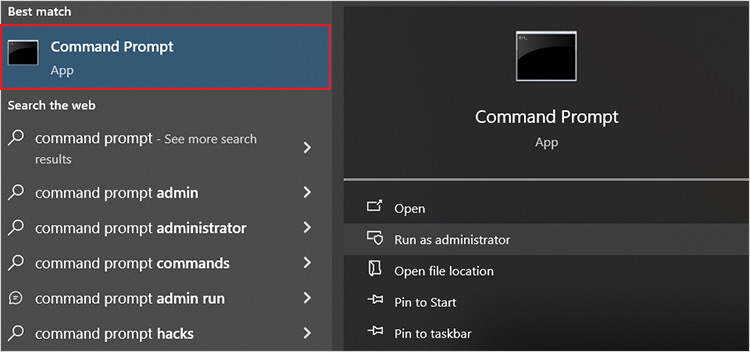
- Enter the following command in the Command Prompt window: chkdsk C: /f /r /x
Your primary system drive is C. Replace the drive letter if Windows is installed on a different drive. /f instructs the CHKDSK utility to correct file system issues. /r instructs it to find bad sectors and retrieve data that can be read. In order to enable safe repairs, /x compels the drive to dismount first.
- Hit Enter.
It shows a status report. The report states the disk’s condition along with any problems discovered. The computer then either reboots or displays the Windows login screen.
When to Seek Professional Help to Resolve SMART Hard Disk Error Code 301?
A SMART Hard Disk Error 301 on your HP laptop indicates a failing hard disk. You might start with simple fixes like rebooting, performing diagnostics, or creating a backup of crucial files. However, it’s time to stop using the drive if the error keeps coming up or if you hear strange clicking sounds coming from it. DIY fixes often lead to irreversible data loss. At this point, expert assistance becomes essential.
To resolve critical issues like SMART Error 301, you should seek the advice of reputable data recovery experts like Stellar. In order to recover data from failed (or failing) disks, our professionals perform advanced cloning in ISO-certified Class 100 Cleanrooms to limit the chances of further harm to the drive. Our experienced HDD data recovery team then uses world-class tools to safely recover data from the cloned drive.
With Stellar Data Recovery, you get a guarantee of optimal recovery for all types of data from all types of storage devices. Seeking our expert assistance offers you the best possibility of recovering your priceless data and peace of mind.
Summing Up
You should never ignore SMART errors, including Hard Disk Error 301. Such errors serve as an early warning system to alert you to the threat to your drive. The good news? You can prevent data loss if you reach out to a professional data recovery service.
As SMART errors indicate a failing drive, the fixes given above might not resolve the problem. In that case, contact Stellar Data Recovery before replacing the HDD if the data stored in it is valuable.
There are a few other common hard drive errors that users experience. You can explore them here:
FAQs
The 301 error code is an indication that your hard disk is failing. When this error shows up during startup, you should immediately back up your data and replace the drive. If you are unable to access the contents, contact HDD recovery experts like Stellar Data Recovery.
Hard Disk 301 error is a sign that your hard drive is malfunctioning or has serious problems. Make a backup of all your crucial files to prevent data loss. Next, verify the drive’s condition by using the integrated hardware diagnostics. Usually, replacing the damaged hard disk with a new one is the long-term solution. If you are unable to access your data, trying out DIY fixes or restarting your computer repeatedly could worsen the damage. To safely recover your data, get assistance from a professional data recovery service.
CHKDSK (Check Disk) is a Windows utility that can identify and correct minor logical faults on a hard drive. However, severely corrupted or physically damaged drives cannot be repaired via CHKDSK. It’s advisable to back up important data and seek advice from data recovery professionals if the drive exhibits recurring faults, strange noises, or frequent crashes.


About the author