How To Fix Getting Windows Ready Stuck in Windows 10/11?
-
 Written By Kees Jan Meerman
 -
 Updated On Jul 29, 2026
 -
 Min Read 5 Min
 - Share this

Summary:
- If your PC has only just reached the “Getting Windows Ready” screen, give it some time. Large updates can be slow.
- If the screen hasn’t changed for hours and your system is stuck on “Getting Windows Ready”, it’s usually no longer working normally.
- Start with one forced shutdown, unplug any devices, then open Windows Recovery Environment.
- If Windows still won’t load, protect your files before you try a reset or reinstall.
- The best prevention is simple: free space, stable power, and a backup you’ve actually tested.
Your PC gets stuck on “Getting Windows Ready” when Windows tries to finish an update and something breaks mid-process. This could be a damaged update cache, a driver conflict, low disk space, or storage trouble (that will only show up when the system is under heavy write activity).
It feels dramatic, and sometimes it is. But most of the time, you can still sort it out without losing your files. The trick is to stop pressing the power button and hoping for the screen to change, and understanding the deeper problem first.
This issue is also closely related to “getting files ready for installation stuck”, which appears during Windows setup or updates when the system fails to complete file installation.
Why Is Windows Stuck on “Getting Windows Ready”?
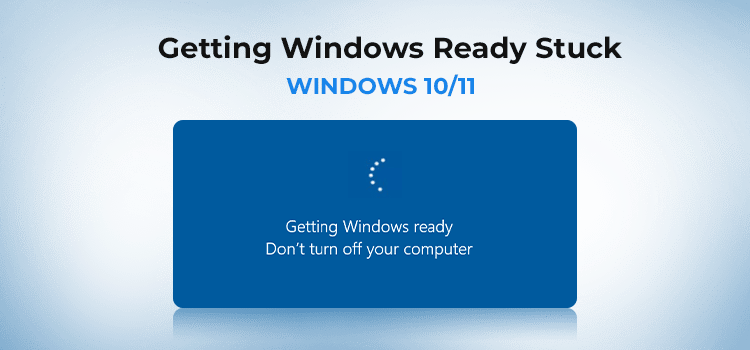
If your Windows update is taking too long, it’s probably because your system is applying update changes during boot or sign-in. The system has to unpack files, update the component store, load drivers, and commit changes to the file system. If one step fails, the machine can sit on the same screen or loop back to it.
A weak SSD or an old hard drive can also be the issue. You may not notice any problem during normal browsing, but Windows Update pushes the disk much harder. That extra read and write load can expose bad sectors, unstable firmware, or NTFS damage very quickly.
Here’s what the usual symptoms point to:
| Symptom | What it usually suggests | What to do first |
|---|---|---|
| Stuck on the same screen for hours | Update process has stalled | Wait once, then shut down properly |
| Reboots back to the same message | Pending update tasks are failing | Open recovery options |
| Message disappears, then black screen | Driver or profile issue after update | Try Safe Mode |
| Freezing with odd disk behaviour | Storage might be unstable | Recover data first |
| Happens after every update | Deeper update corruption | Repair Windows files |
How Long Should “Getting Windows Ready” Take?
- There’s no neat number. A recent laptop with an SSD may finish quickly. An older office PC with a hard drive may take much longer, especially after a feature update.
- Still, you can usually tell when it has crossed the line from slow to stuck. If nothing changes for several hours, the keyboard does nothing, and every reboot lands you right back there, stop waiting. Start recovery.
How Can You Fix Windows Update Stuck on Getting Windows Ready?
Start small. Don’t jump straight to reinstalling Windows.
1. Wait, then Force one Shutdown
Let the PC sit for a fair while first. After that, hold the power button until it switches off, leave it for a minute, then start it again. One forced shutdown is fine. Repeating it over and over is where damage starts to pile up.
2. Remove anything Windows doesn’t need
Unplug USB drives, printers, SD cards, docking stations, and external storage. Keep only the basics connected. Sometimes Windows hangs because it’s trying to load a driver or initialise a device that no longer behaves properly.
3. Open Windows Recovery Environment
If normal boot keeps failing (for example, due to a boot device missing error), interrupt startup a few times and let Windows enter recovery mode. Then go to Troubleshoot, Advanced options, and run Startup Repair first. It’s the least risky repair step and often enough for broken boot files.
5. Try Safe Mode
If Startup Repair doesn’t help, boot into Safe Mode. That strips startup back to a minimal driver set. Once you’re in, remove the most recent update, feature upgrade, or driver that landed just before the problem started.
5. Run SFC and DISM
Open Command Prompt and run:
sfc /scannow
DISM /Online /Cleanup-Image /RestoreHealth
These are standard repair commands for a reason. SFC checks protected system files. DISM repairs the Windows image that those files come from. If update servicing is damaged, this pair is often worth trying before anything drastic.
6. Use System Restore or Uninstall Updates from Recovery
Can’t reach the desktop? Use recovery options to uninstall the latest update there instead. If System Restore was turned on, use that before you think about resetting the whole PC.
Warning: If your drive makes clicking sounds, the HDD is not detected in BIOS, or the system freezes during scans, stop further repair attempts and prioritize data recovery.
How Can You Recover Data If Windows Won’t Boot?
When Windows won’t load, the operating system stops being the priority. Your files come first.
You have a few sensible options:
- Remove the SSD or HDD and connect it to another working PC.
- Boot from recovery media and copy important folders to an external drive.
- Use free data recovery software if the drive is readable but Windows is not.
- Go to a professional data recovery expert lab if the drive is unstable, noisy, or missing.
This order matters. Recover first. Repair later.
How Do You Recover Files from a Non-Booting PC Using Stellar Data Recovery for Windows?
If the drive still shows up normally, Stellar Data Recovery for Windows is a practical route. Connect the affected drive to a healthy computer, scan it, preview the recoverable files, and save them somewhere else. Not to the same drive.
This works best when the damage is logical. A broken Windows installation, damaged boot files, or a corrupted partition table often still leave user data intact. If the drive keeps disconnecting or becomes unresponsive during scans, stop there. Stellar Data Recovery Experts handle those cases in ISO 9001 and ISO 27001 certified facilities. Contact Stellar’s data recovery service today.
Stellar’s Expert Insight
A frozen update screen isn’t always about the update itself. Sometimes the update is just the moment your storage problem (that has always been there) finally becomes visible.
We see this often. The machine seems mostly fine, then one update pushes sustained writes to the disk, the file system trips over damaged metadata, and Windows never completes startup. That’s why repeated hard shutdowns can make a recoverable case much worse.
Why Choose Stellar?
When Windows stops talking to your hardware, you need more than just “tips.” You need a recovery partner that can bridge the gap between a software glitch and a hardware catastrophe. There are two kinds of recovery here: software recovery from a readable drive and lab recovery from unstable or failing media.
Stellar covers both paths. Use the Stellar Windows Data Recovery software when the disk is healthy enough to read. Use Stellar’s data recovery service when the drive is behaving like hardware trouble, not just a Windows boot data recovery problem. This includes issues like physical damage in SDDs, HDDs, laptops, and other removable drives.
- We don’t just “undelete.” While basic tools look for deleted files, Stellar Data Recovery for Windows reconstructs entire partitions. If an update wiped your file directory, our software is designed to find the raw signatures of your photos and documents.
- Real Labs, Real Engineers. If your SSD has vanished from the BIOS or your HDD is making noise, software is dangerous. We have ISO-certified labs, where we handle even physically damaged hard drives and stabilise failing media to recover data that other shops call “lost.”
- No Guesses. Our diagnostic is transparent. We’ll tell you if it’s a simple logical fix or if the drive needs “surgery” in our cleanrooms.
How Can You Prevent Windows Update Problems in the Future?
Here are practical tips to keep windows update problems at bay:
- Keep enough free space on the system drive.
- Leave laptops plugged into AC power during major updates.
- Keep a real backup and test it occasionally.
- Fix repeated update errors early instead of ignoring them.
- Run SFC and DISM when Windows starts acting odd after updates.
- Avoid forcing shutdowns unless the machine has clearly been stuck for hours.
- Create restore points before major driver or feature changes.
- Check disk health if the PC has been freezing, slowing down, or throwing storage warnings.
If you’re dealing with different types of failures, you may also find these detailed guides helpful:
FAQs
Sometimes it does, especially on slower PCs. But if nothing changes for several hours, it’s usually stuck.
One controlled shutdown is reasonable after a long wait. Repeated forced restarts raise the risk of corruption.
Use Stellar when Windows won’t start but the drive is still readable. If the drive itself looks unstable, contact Stellar’s in-lab experts in India instead.
Data recovery costs can vary depending on the type of issue, device, and level of damage. Simple cases like deleted files or minor corruption are usually more affordable, while physically damaged drives or complex recoveries may require advanced techniques and cleanroom work, which can increase the cost. A proper diagnosis helps determine the exact issue and ensures you only pay for the level of recovery required.
Yes, especially with a clean install or a format. Recover important data first if the system won’t boot. If you do, use Stellar Data Recovery for Windows to recover data from crashed or unbootable Windows systems.
If your system shows “getting files ready for installation stuck”, it usually means Windows cannot complete the installation process due to corrupted files, disk errors, or low storage space. This issue is similar to the “Getting Windows Ready” problem and can be fixed using Startup Repair, Safe Mode, or SFC and DISM scans.


About the author