Solution To Fix “SD Card Not Initialized” Error
-
 Written By Kees Jan Meerman
 -
 Published On Feb 11, 2026
 -
 Min Reading 5 Min
 - Share this

Summary: A minuscule object packing a ton of power. Nothing explains an SD card better. It is one of the most commonly used storage devices around the world. Why? Because it is ridiculously compact yet extraordinarily powerful. SD cards can range in size from 2GB to 2TB (SDXC).
SD cards find their use in smartphones, portable media players, digital cameras, voice recorders, etc. Just like any other storage media, like flash drives and hard disks, SD cards are reliable. However, just like the others, SD cards aren’t foolproof.
For getting familiar with the GUI of photo recovery software you can download the demo version of photo recovery software below. Download and install the software to evaluate the functionality of the software and preview your data from an undetected SD Card.
“Card not initialized” is the most common error you’ll face with an SD card. This error is trying to tell you that either your card needs to be formatted, or that it has been formatted.
“Undetected SD Card” error is another common issue that can arise if there’s a problem with the card itself or the card slot. Both these errors can be nerve-wracking in terms of whether you’ll recover your data or not.
But don’t worry, we’re here to show you how to Fix the SD Card Not Initialized Error.
What Is the “SD Card Not Initialized” Error?
If you’ve seen messages like “SD card not initialized” or “memory card not initialized”, it means your device (like a camera or computer) can’t read your SD card. This might also appear with an error code like “failed to initialize the SD card 0x00004a18”.
This problem can be frustrating, especially if you use a Fujifilm camera, where it’s a common search query as the Fujifilm card is not initialized. Whether on a Windows PC or a Mac (where you might see “SD card uninitialized mac” messages), this error stops you from using your card until it’s fixed.
What’s the Reason Behind SD Card Not Initialized Error?
The card not initialized error can happen due to many reasons. And knowing the root cause will help you find a solution quickly.
So here are some of the causes behind the SD Card not initialized error.
- Improper insert: Sometimes, you may not have inserted the card correctly into the slot. This should be the first thing you check if your SD card isn’t read.
- Dirty Pins: Digital camera or smartphone read the SD card with the help of the SD card’s pins (which you can typically notice as thin copper stripes). However, if dirt has accumulated on these pins, then it may make it difficult for your device to load the memory card. And it would throw a card not initialized error.
- Data Corruption: Your SD card files can be corrupted or damaged because of both physical and logical errors. The latter includes malware attacks, unintentional formatting, operating system corruption, etc.
- Incompatible Hardware: If the mobile phone or digital camera doesn’t support the memory card that you are using, you may receive an “SD Card not initialized Error” etc.
Solutions to Fix “SD Card Not Initialized” Error
If your SD card has become “unreadable”, there is no need to panic, data recovery from your SD card is possible in most cases.
That said, before taking any drastic measures or jumping to conclusions, you can try the following essential solutions first:
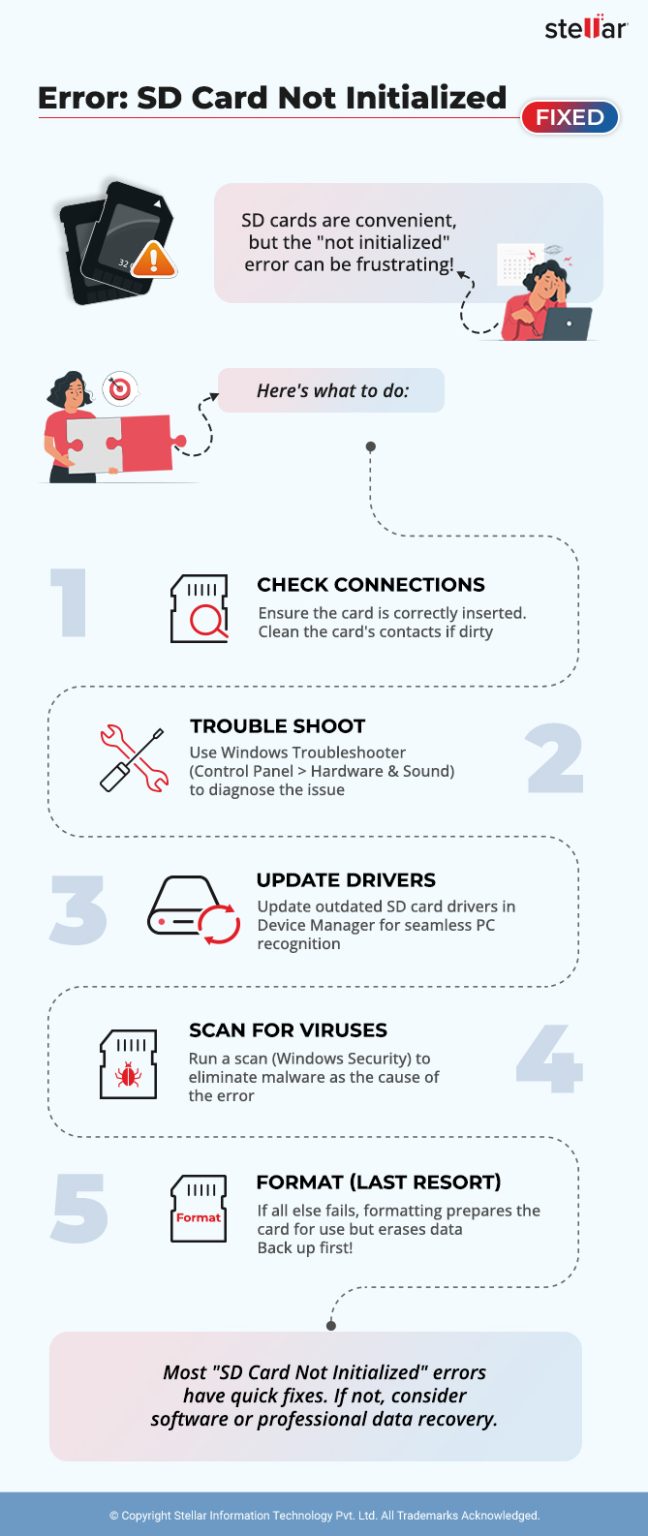
- Switch off the device, remove the SD card, and reinsert. Turn on the device and see if it worked. If it didn’t, then proceed to the next step.
- Get soft and clean cotton to clean the memory card pins (i.e. the electrical contacts). Once done, repeat the step above. Be cautious the remove all the fibers from the slot.
If your card not initialized error doesn’t get fixed with either of these solutions, don’t lose hope yet. There are a couple of more DIY methods you can try at home before you need to pull out the big guns.
Fix 1: SD Card Troubleshooting
Troubleshooting will help you diagnose the issue and rectify it. Here’s how to troubleshoot your SD Card.
1. Open “Control Panel” and then open “Troubleshooting”.
2. Here, select the “Hardware and Sound” option then navigate to “Hardware and Devices”.
3. This will open a wizard. Follow the steps instructed by the wizard. Wait until the troubleshooter diagnoses the issue.
Once you get your diagnosis, you will be able to find a faster solution to fix the SD card not initialized error.
Fix 2: Update SD Card Drivers
An SD card driver is what reads your card on your PC. An issue with this driver could also cause a card not initialized error. If this happens, you need to update your SD card driver. Here’s how.
1. Open the “Control Panel” and navigate to “Device Manager”.
2. Right-click on the SD card and click “Properties”. In this window, open the “Driver” tab. Here, click “Update Driver”.
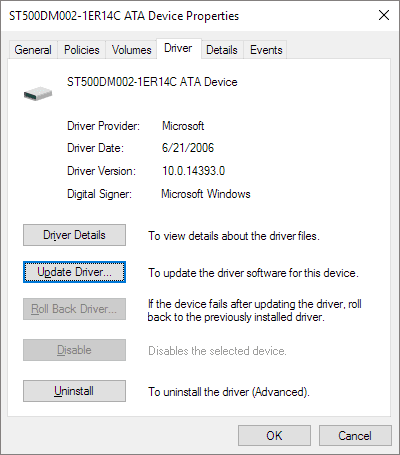
3. You will see an option called “Search automatically for updated driver software”. Select this. The driver will get updated. This should fix the card not initialized error if the problem is with the driver.
If the problem doesn’t get rectified, move on to the next solution.
In most cases, the methods shared above should be able to get your SD card up and running again and fix the SD Card not initialized Error once and for all.
However, if the problem persists, then you have two options:
- Software solution
- Service Solution
Both options are equally competent and capable of achieving 100% data recovery. The only difference is in their working. At first, you can recover the data on your own with the help of the data recovery software. However, in the second option, you should hand over your SD card to a data recovery service expert who can do the task for you. The latter is more suitable for when there’s physical damage to your SD card.
Fix 3: Scan the SD Card for Viruses
Sometimes, the SD card not initialized or memory card not initialized error might stem from a virus or malware affecting your SD card.
Here’s how to check:
- Connect: Insert your SD card into your computer.
- Navigate: On your computer, go to Settings > Update & Security > Windows Security > Virus & threat protection.
- Choose Scan: Click “Scan options” then choose “Custom scan” > “Scan now”.
- Select and Scan: Choose your SD card and click “Select Folder”.
- Wait and Check: Let the scan finish. Once complete, safely remove your SD card and see if the error is gone.
Important Note: If your antivirus detects an issue, follow its recommendations for removing the virus or malware.
Fix 4: Format the SD Card
If other fixes haven’t worked, you might need to format your SD card to resolve the SD card not initialized or memory card not initialized error. Formatting prepares the card for use with your device, but be aware:
Important: Formatting erases all data on your SD card. Make sure to back up important files before proceeding.
Here’s how to format your card using Windows:
- Connect: Insert your SD card into your computer.
- Open Disk Management: Right-click on the Windows icon and choose “Disk Management”.
- Locate and Format: Find your SD card’s partition, right-click it, and select “Format”.
- Choose Settings: Give your card a volume label (name), select a file system (usually FAT32 for smaller cards, exFAT for larger ones), and choose an allocation unit size.
- Confirm: Click “OK” to start the formatting process.
Mac users can face similar challenges. Specifically, the SD card uninitialized Mac error can be a headache. For Mac users experiencing the “SD card uninitialized mac” error, here is the process.
- Connect the SD card uninitialized Mac to your Mac computer.
- Open Finder, go to Applications, and then Utilities. Launch Disk Utility.
- Select your SD card from the sidebar and click on First Aid to check for errors.
- Follow the prompts to repair any issues detected on your SD card uninitialized Mac.
This process helps in identifying and fixing file system errors that might be causing the SD card to remain uninitialized on your Mac.
Software Solution
There are many software programs that let you fix “SD Card not initialized Error”. However, when it comes to your data, you need to choose the most reliable program, right? And we’re only here to discuss the best. So we will be taking you through the Stellar Photo Recovery software to find the card not initialized error.
Steps to recover data from SD card which is showing “SD card not initialized error”:
- Download and install Stellar Photo recovery software
- Now, Connect the SD card to your computer with a USB-based media device or an SD card reader and launch the software from your desktop/system.
- Click “Recover Photo, Audio & Video”. The software can recover audio, images, and video data recovery from any SD Card.
- Select the location/media device on your computer system that you want to recover your data from. In this case, you need to select the SD card.
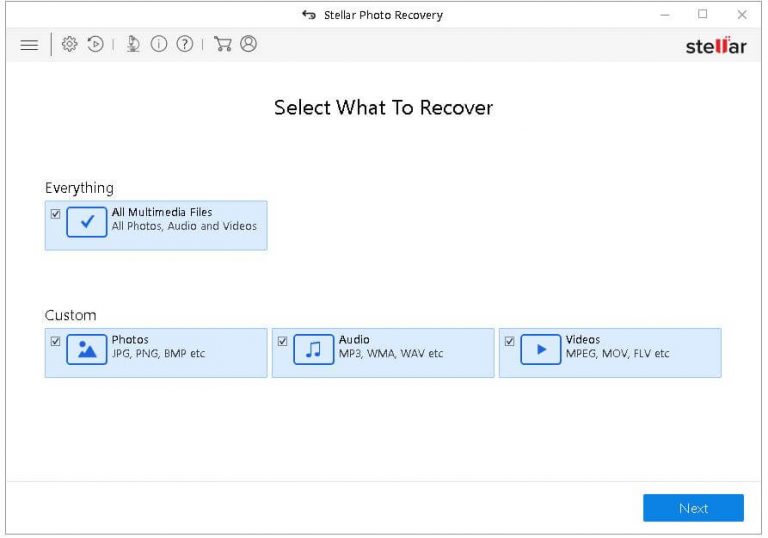
- Click the “Scan Now” button if you want instant results with no recovery customization. Otherwise, you can click “advanced settings” located on the bottom right of the screen.
- In the second option, you can either select “supported file format” if you want to recover files with select formats (in the photo, audio, or video), or “select region” if you want to scan only specific locations on your SD card.
- The software will scan the SD card as per your directions and list the recovered files on the left side of the interface for you to see.
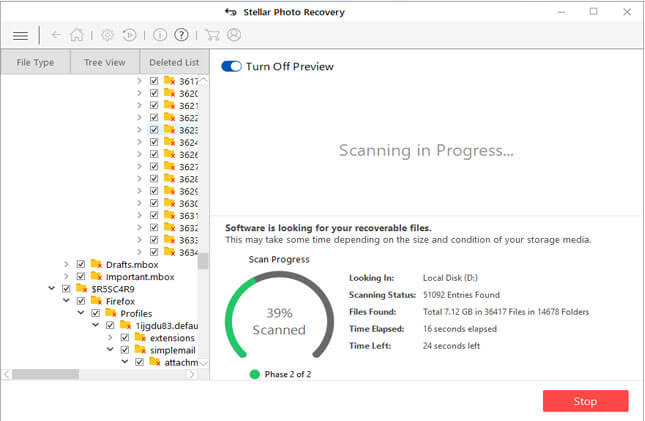
- Select the files you want to recover and click the “Recover” button located on the bottom right of the screen.
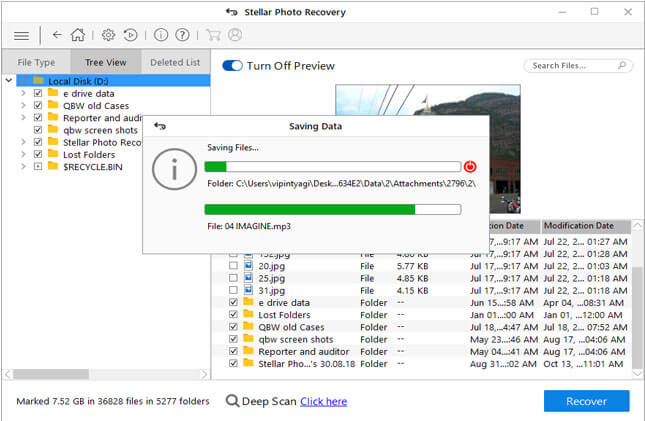
- Select the location where you want to store the recovered files on your system. The shown screenshot depicts the recovered files that are being saved to the desired location.
- That’s it! You recover your photos, videos, and audio files.
Service Solution
A professional data recovery company such as Stellar has a state-of-the-art data recovery lab and skilled recovery engineers that use advanced practices and specialized software for successful data recovery from SD Card.
In a service solution, the Data recovery experts take your SD card to assess the damage in detail. They check if any damage to the circuitry or if there is some logical error. If it’s the former, they identify the repairable sectors/regions and then provide a list of recoverable files to you for approval. If the problem is the latter, then it’s usually possible to recover 100% of the data, and they shall perform the standard SD card data recovery procedure.
Conclusion
The “SD Card not initialized” is a reasonably standard error, and in most cases, you can recover the data rather quickly. However, if you don’t want to take any chances, and if the data is particularly important to you, then it’s best to use specialized software such as the one discussed above or a comprehensive and professional data recovery service.
The solutions mentioned above are viable to fix the “SD card not initialized” error. Whether you are curious to know about the flash drive evolution, history, specifications, speed, size, or form factors, check out our detailed guide.
You may also find these related articles helpful in resolving other SD card and storage issues:
FAQs
This is basically another way of saying “formatting an SD card”. When you initialize the card, it will permanently erase all the data contained within the card. This is why you will need to revert to data recovery techniques.
You can try inserting your SD card into another device, reassign the drive letter, or update the SD card driver to fix your SD card error. You can also try the CHKDSK command to repair a software issue with the SD card. None of these methods would permanently delete the data from your SD card.
Yes, you can recover a corrupted SD card. The best way to recover a corrupted SD card is by using data recovery software. This can help you recover all of your data.
Prevent a card not initialized error, you need to ensure the health of your SD card. You can run diagnoses periodically to keep up with the card status. You should always use a high-quality card reader and always eject the card safely from your computer. If you don’t follow these practices, you will need to know how to Fix the SD Card Not Initialized Error.
All SD card brands are safe and reliable. There is usually only a problem with older SD cards. But Transcend and SanDisk is two of the most reliable SD card brands that will last for many years.


About the author