Troubleshooting “Seagate External Hard Drive Not Showing Up Windows 11”
-
 Written By Kees Jan Meerman
 -
 Updated On Jun 25, 2026
 -
 Min Read 5 Min
 - Share this

Summary: Seagate external hard drives are highly reputed and affordable. Though they are reliable, at times the hard drive might stop working. Follow the tips we provide to solve the situation of Seagate external hard drive not showing up Windows 11. If none work, Stellar Seagate Data Recovery Services will help you get back the lost data.
Introduction
Seagate external hard drives are an excellent buy for anyone looking to store and backup data.
But, as with any technology, there are some problems that can occur. Seagate external hard drive not showing up Windows 11 happens often.
If you are a Windows 11 user, you may have faced the frustrating issue of your Seagate external hard drive not showing up when you plug it into your PC.
Never panic when the drive does not respond. There are several steps you can take to try to fix the problem.
Best Ways To Fix Seagate External Hard Drive Not Showing Up Windows 11
1. Check The Connections
This is the most common issue that causes the Seagate hard drive not showing up Windows 11. USB pins and plugs can fail often.
Unplug the Seagate external hard drive and plug it into a new USB port. It is best if you try to plug it into a different laptop or desktop.
If the Seagate external hard drive not showing up Windows 11 problem is resolved, you know the USB port in question is faulty. Otherwise, changing the USB cable also helps.
2. Run Hardware Troubleshooter
The hardware and device troubleshooter is a built-in tool in Windows 11. It can often help users diagnose and fix problems with hardware like Seagate external hard drive detected but not accessible.
The troubleshooter is especially useful when you are experiencing issues such as Seagate external hard drive not showing up Windows 11.
- Open the Settings app by pressing the Windows key + I on your keyboard
- Otherwise, you can right-click on the Start menu and select Settings.
- In the Settings app, click on the System option.
- In the left-hand menu, scroll down and click on the Troubleshoot option.
- Under the Troubleshoot option, click on the Other Troubleshooters button.
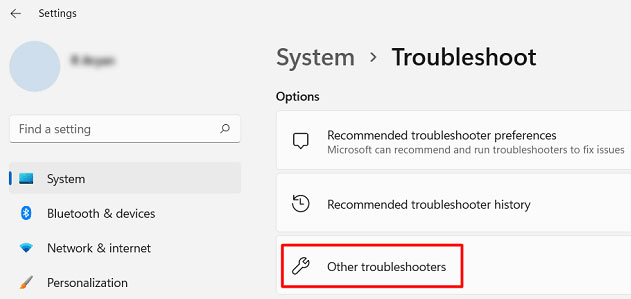
- Scroll down the list and locate the Hardware and Devices troubleshooter.
- Click on it and then click on the Run the Troubleshooter button.
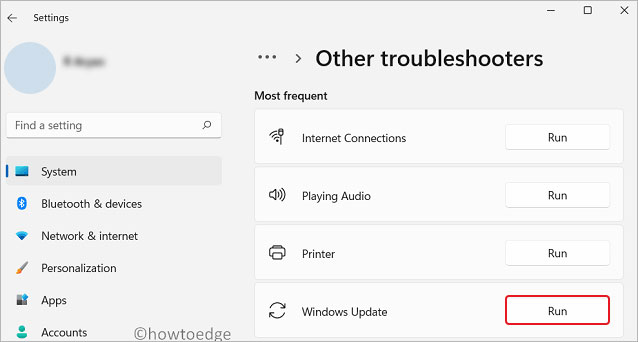
- The troubleshooter will now scan your system for hardware issues.
- Follow the on-screen instructions to fix the detected issues.
3. Check Disk Management
The Disk Management tool in Windows 11 offers complete information on the number of hard drives, number of partitions, the size of each and free space.
Even if the Seagate external hard drive does not show up in the File Explorer window, it might show up in Disk Management.
- Right-click on the Start button
- Select Disk Management and let it update
- If the Seagate external hard drive shows there, the PC recognizes it
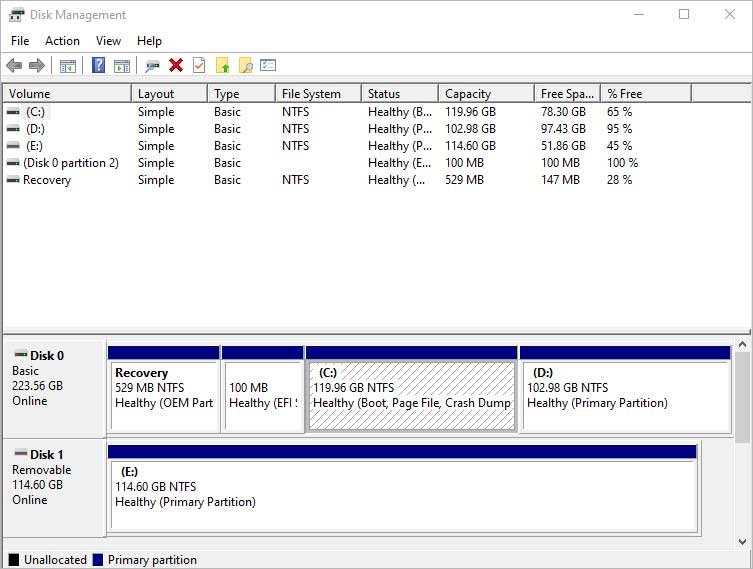
- Right-click on the drive and click Properties.
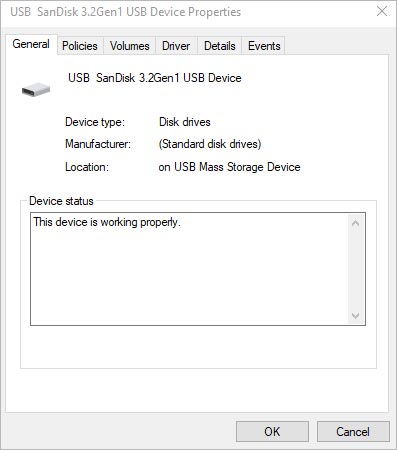
- Select the Driver tab and click Uninstall Driver
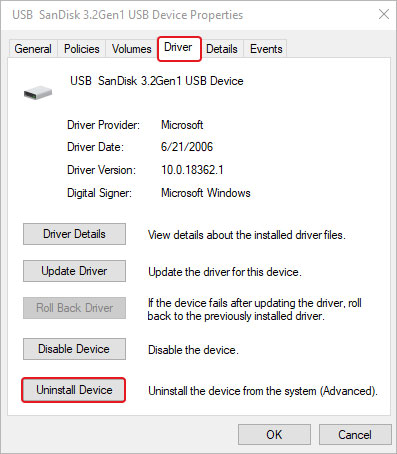
- Restart the PC and reconnect the Seagate external hard drive
- Now Windows 11 will reinstall the USB driver
Leave it running with an internet connection and it will search out a new driver if needed. This usually solves the problem Seagate external hard drive not showing up Windows 11.
4. Change Power Settings
Windows 11 can suspend the power supply to a USB port to conserve power. You need to Enable the USB selective suspend setting feature. This can solve the Seagate hard drive not showing up Windows 11 problem.
- Type Settings in the Search bar
- Select System > Power
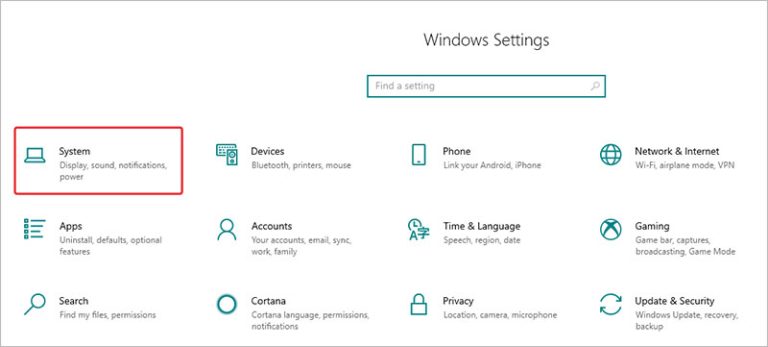
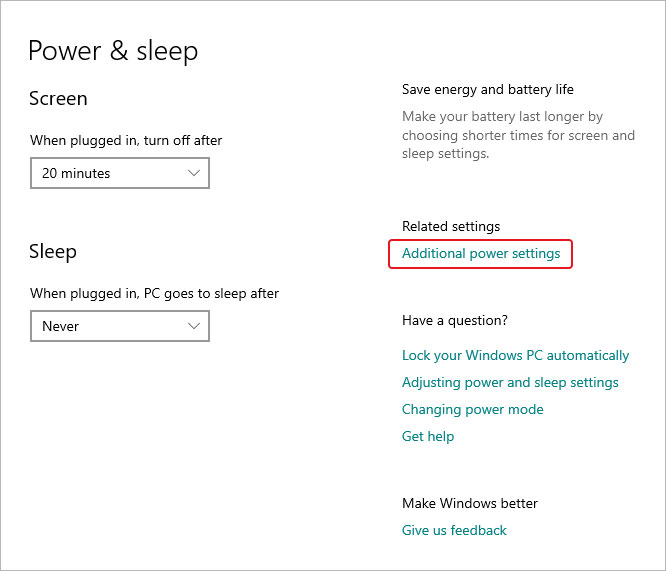
- Select Additional power settings.
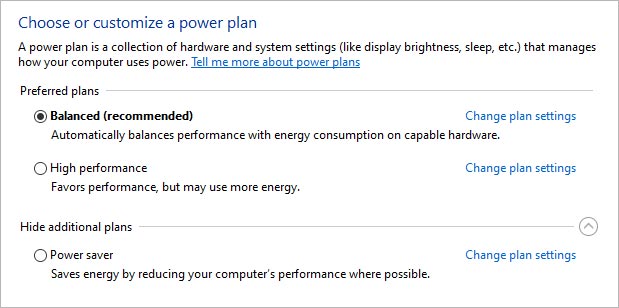
- Several plans will open, including the current one.
- Click on Change plan settings.
- Click on Change advanced power settings.
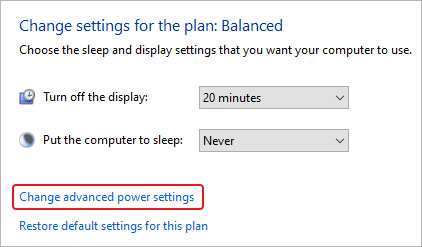
- Scroll down and select USB Settings and expand.
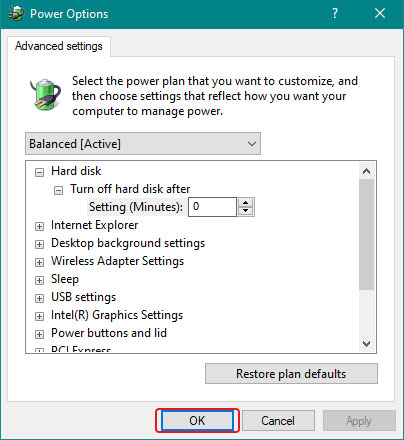
- Ensure both “On battery” and “Plugged in” are Enabled.
- Click Okay and exit.
USB selective suspend setting is now on.
5. Use Data Recovery Services For Seagate External Hard Drive Not Showing Up Windows
If none of the options above work, you have to let an expert clone the drive. With proper diagnostic tools, they can recover the data from the hard drive. Data is seldom lost. Only the metadata that points to its location can disappear.
A technician can reconstruct the entire hard drive, including media files, office documents, PDF files and much more.
Salvaging data from a dead Seagate external hard drive is very possible, but it needs knowledge, experience and proper infrastructure.
There is no one better than Stellar Data Recovery to perform this task. If none of the solutions above work, it is very likely that Windows is returning this error because of a complex logical or physical issue. Keep reading to gauge your options.
Case Study – Internal Structure Corrupted Seagate Hard Drive
Client: Undisclosed – Corporate Customer
Goal: Recover data from a Seagate Hard Drive with Internal Structure Corruption.
Challenge: Data on Seagate 1TB ST1000DM003 Hard Drive cannot be accessed.
Process of Stellar Data Recovery:
- Initial Investigation: It was discovered during the initial investigation that although the hard drive was recognized in BIOS, it was unable to read any data from it.
- Extensive Analysis: Analysis revealed that the internal structure of the hard disk was corrupted and that it was not possible to access it.
- Recovery Procedure: Stellar Data Recovery performed the recovery, and the data was arranged and shown in a directory manner.
Client Comment: The customer was really happy and satisfied with Stellar Data Recovery’s Services. They were greatly assisted by the successful recovery of important data from the Internal Structure Corruption Seagate Hard Drive. Stopping further overwriting as soon as you realize that files are corrupted. It is essential for a successful recovery.
Stellar Data Recovery Services — The Leader In Data Recovery
Stellar Data Recovery Services brings to the table state-of-the-art technology. Our engineers not only work with hard drives from laptops and desktops but also the largest servers.
We have 30 years of experience in data recovery. During that time, we have developed techniques and proprietary algorithms that scan a hard drive sector by sector and retrieve data.
Stellar Data Recovery Services has a 4-step recovery process.
- Consultation: A phone consultation with our experts is absolutely free. You tell us the problem and we tell you what has probably happened and tell you how to proceed.
- Analysis: When our engineers inspect the drive and find the fault, they can provide a quote. The quote depends on the amount of data and how long it will take to retrieve it.
- Recovery: If you want to proceed, our engineers will begin data recovery. We do not divulge how we perform it and you cannot be present.
- Verification: The last step is verification when we test if the target drive has the same information as the damaged drive. The verified data is sent to you using an external hard drive.
Wrapping Up
If you face an error such as Seagate external hard drive not showing up Windows 11, do not panic.
We have provided a detailed response to the question: how do I fix Seagate external hard drive not detected?
A non-responsive Seagate external hard drive can be a major headache. Follow the steps given above and all will be fine.
In case none of the steps work, call us and we shall help you.
Read these related articles to understand common hard drive errors and learn effective troubleshooting methods.
FAQ
It is partly bad luck. A hard drive can fail at any time and reports from server farms show that they do.
If you want to avoid Seagate external hard drive not showing up Windows 11, we suggest you use Stellar Drive Monitor software. It scans the drive, analyzes several parameters and lets you know if the drive is healthy.
It cannot prevent the drive from crashing, but most likely will let you know beforehand that all is not well. You can then back up the data and avoid the hassle.
We have 15000 old drives from which we can source spare parts. You can send us drives from laptops, desktops, CCTV, RAID Servers, NAS, SAN and any other type of enclosure.
We can recover data from HDDs and SSDs having SATA, PATA, IDE, eSATA, Fiber Channel, SCSI, USB and Firewire interfaces.
If you have damaged storage media, we have you covered.
- We are in this domain for 30 years
- We have India’s largest Class 10 Clean Room—essential for working on hard drives
- We have worked with global clients and perform thousands of recoveries every year
- Our work has fetched us exceptional reviews on Google and Trustpilot
- We have a huge pool of trained engineers who are well-equipped to recover data from Seagate Hard Drives


About the author